
Essential for gaming with friends! Several super fun AI real-time voice changers
Part 1: [Mainstream Tools Comparison] Voicemod vs Voice.ai: Which is Your Best Gaming Companion?
AI Real-Time Voice ChangerIt can greatly increase the fun of playing games with friends. However, among the many tools available,Voicemod和Voice.aiThese are undoubtedly the two most well-known. While they may seem similar, their positioning and user experience are actually quite different. This article will provide a detailed comparison from multiple perspectives to help you find the one that best suits your needs.
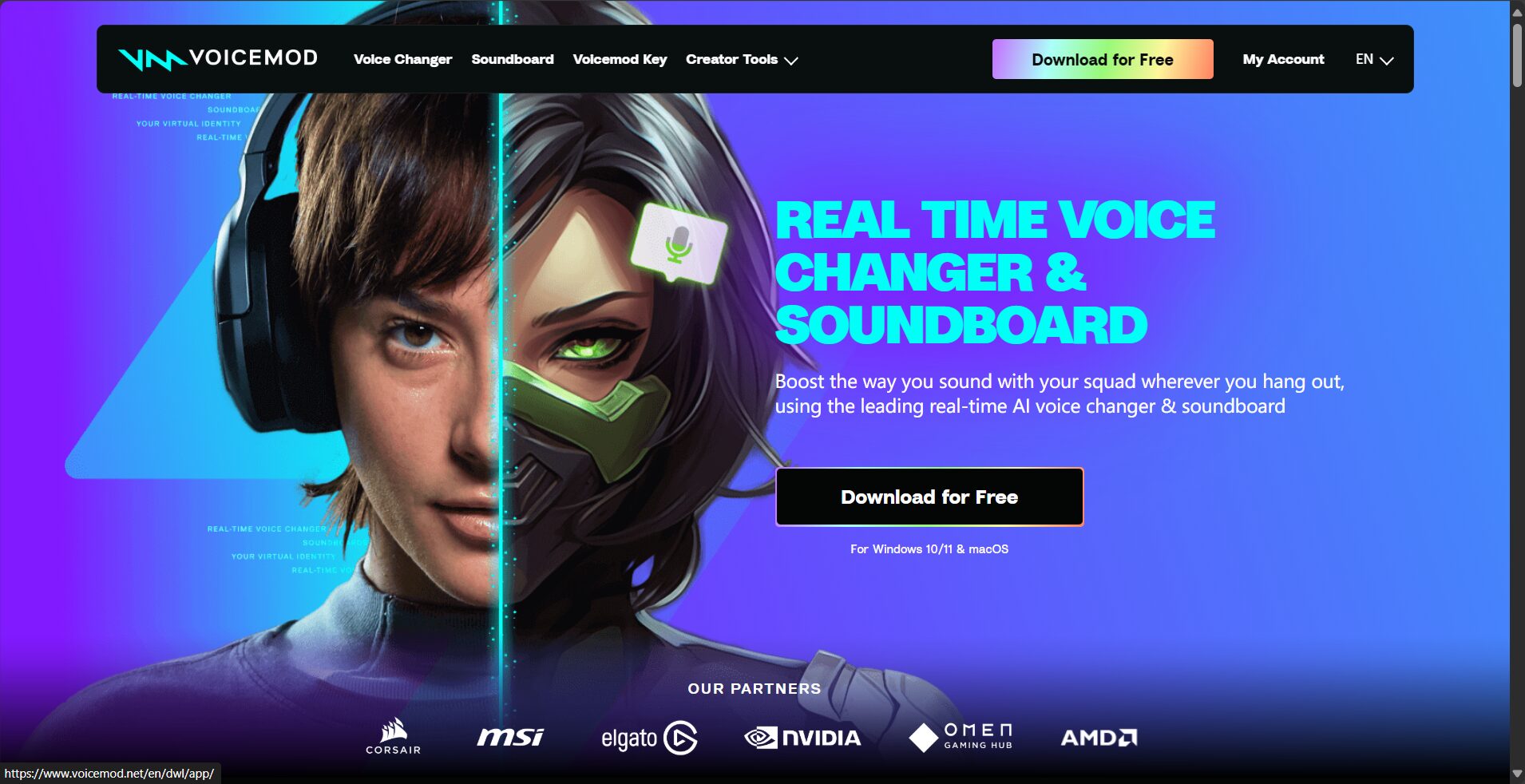
| Features/Dimensions | Voicemod | Voice.ai | In short |
|---|---|---|---|
| Core positioning | Entertainment sound effects platform | Community-driven sound cloning platform | Voicemod stands for "Toy Box," and Voice.ai stands for "Imitation Show."“ |
| Difficulty of getting started | Extremely lowThe interface is intuitive and easy to use, requiring almost no learning curve. | mediumIt is necessary to understand the logic behind its integration system and model library. | Newbies play with Voicemod, while those who like to experiment play with Voice.ai. |
| sound library | The official website offers a large number of high-quality, stylized preset sounds and effects. | The user community uploads a massive number of sound models, which are diverse in type and varying in quality. | Voicemod boasts stable quality, while Voice.ai excels in sheer quantity. |
| Voice changing effects | 声音清晰,娱乐性强,但“AI味”稍重,一听就是变声器。 | The top-tier models are incredibly realistic, perfectly replicating the voices of specific characters. | Voicemod is just for fun; Voice.ai is incredibly realistic. |
| Special features | Soundboard (sound effects library) Its trump card is the ability to play various funny sound effects with a single click. | Voice UniverseUsers can freely upload and use a massive number of models. | Voicemod is a must-have for creating atmosphere, while Voice.ai is a must-have for cosplay. |
| System resource usage | The temperature is relatively low, and the impact on game performance is negligible. | The CPU usage is relatively high, especially when earning points in the background, which consumes a lot of GPU resources. | Voicemod runs more smoothly on low-spec computers. |
| Paid model | The free version rotates a small number of sounds daily.Paid subscription (Pro) Unlock all features. | Points systemYou can earn points by leaving the game running (contributing computing power) or by purchasing them directly with real money. | Voicemod is a traditional subscription, while Voice.ai offers a choice between time and money. |
| Suitable for | For ordinary players who want to have fun quickly and like to "mess around" in games. | Hardcore gamers and content creators who pursue the ultimate voice-changing effects and enjoy playing specific roles. | Casual gamers should choose Voicemod, while hardcore gamers should choose Voice.ai. |
Scenario-based selection suggestions:
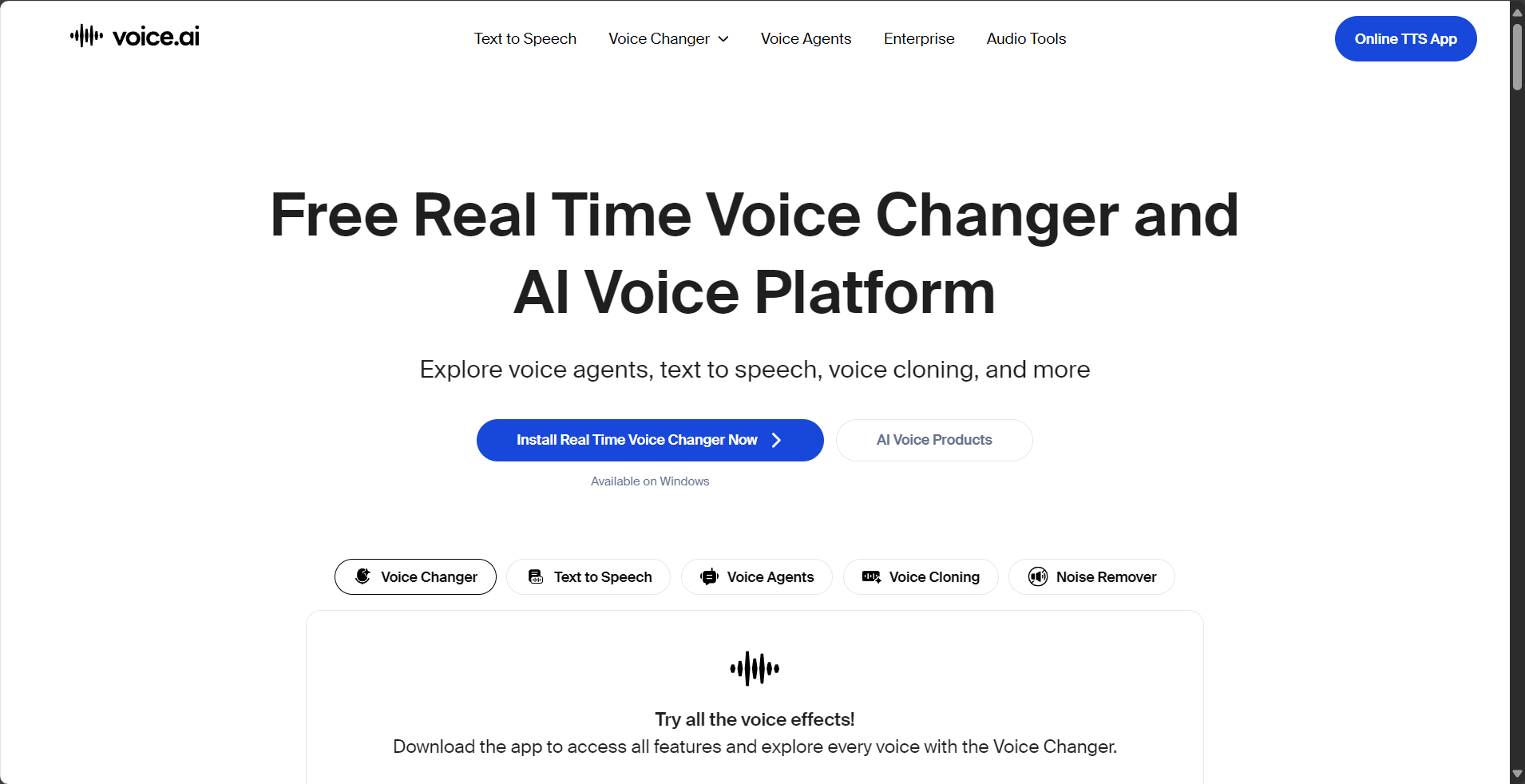

- Scenario 1: Playing Lethal Company or CS:GO with friends, wanting to be silly and liven up the atmosphere.
- Recommendation: Voicemod. You don't need to imitate anyone, just a funny voice. More importantly, you can press a shortcut key at any time to play all sorts of funny sound effects, instantly making your teammates laugh. Its Soundboard function is irreplaceable in this scenario.
- Scenario 2: When playing Apex Legends or Overwatch, you want to use the voice of a hero in the game to communicate with your teammates.
- Recommendation: Voice.ai. You can search for "Bloodhound" or "D.Va" in its model library to find a highly rated model. The immersion and fun of using the character's voice to call out locations is something Voicemod can't provide.
- Scenario 3: Your computer configuration is average, and the frame rate is quite high when playing large games.
- Recommendation: Voicemod. Its resource optimization is better, so it won't put too much strain on your CPU and GPU. However, if Voice.ai is running in the background to earn points, the impact on game frame rate is clearly visible.
in conclusion:
Voicemod and Voice.ai are not competitors; they cater to different user needs. Voicemod is like a feature-rich Swiss Army knife—simple, reliable, and fun; while Voice.ai is like a modular platform with unlimited potential, but it requires more time and effort to explore. Once you understand your primary purpose for using a voice changer, the answer will become clear.
The following tutorials will teach you how to use these voice changers.

This article will be based onVoicemodFor example, we'll use the most detailed steps to teach you how to complete all the configurations, allowing you to freely change your voice in Discord and games.
Step 1: Basic settings within Voicemod
- Download and install Voicemod: From the official website
voicemod.netDownload the latest version and complete the installation. During the installation process, it will automatically install the required virtual audio driver. - Select your input/output devices:
- Upon first launch, Voicemod will display a setup wizard.
- In the "Select your microphone" section“Select your... from the drop-down menu.The microphone that is physically in use** (such as your headphone microphone or USB microphone).
- In the "Select Your Speakers" section“Select your... from the drop-down menu.The devices you usually use to listen to sound (such as your headphones or speakers).
- Click "Done". Now, Voicemod has correctly received your voice and is ready to play sound from your headphones.
- Test the voice changing effect:
- At the bottom of the Voicemod main interface, make sure you **"hear your own voice"**.“(The little ear icon) indicates that it is on.“The "voice changer" (microphone icon) is also enabled.
- Click on any sound from the sound library on the left (e.g., "Giant").
- Speak into your microphone; you should be able to hear your own voice through your headphones. If you can hear it, Voicemod is working correctly. After listening, you can turn off "Hear Your Own Voice" to avoid interfering with gameplay.
Step 2: Configure Discord – so teammates in the voice channel can hear you.
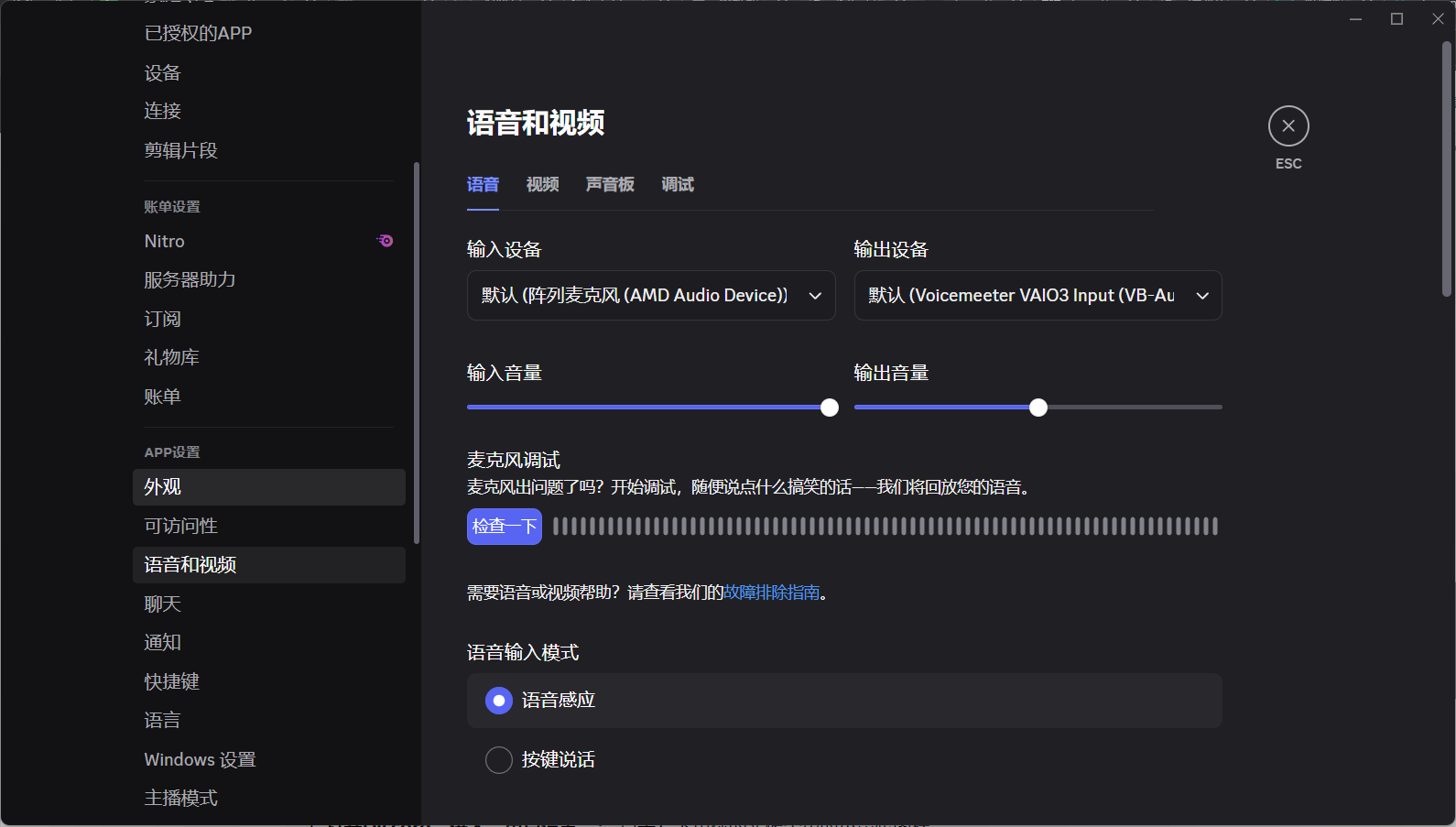
- Open Discord and go to "User Settings": Click the small gear icon next to your profile picture in the bottom left corner.
- Go to "Voice and Video" settings: Find and click "Audio and Video" in the left-hand menu.
- Change input device:
- In the "Input Devices" drop-down menu,Don't choose your physical microphone.。
- Find and select “"Microphone (Voicemod Virtual Audio Device)"”。
- This step is crucial; it tells Discord that your voice source is a virtual microphone processed by Voicemod.
- (Optional) Check settings: You can click the "Let's check it out" button here, speak into the microphone, and if you can see the volume bar moving, it means that Discord has successfully received the voice-changing audio.
Step 3: Configure the game – make it so that teammates in the game can hear you.
The setup logic for most games is exactly the same as Discord. Let's take Apex Legends as an example:
- Launch the game and go to the "Settings" menu.
- Locate the "Sound" or "Audio" tab.
- Find "Voice chat input device" or a similar option.
- Change the option from "Default" to "Microphone (Voicemod Virtual Audio Device)".“。
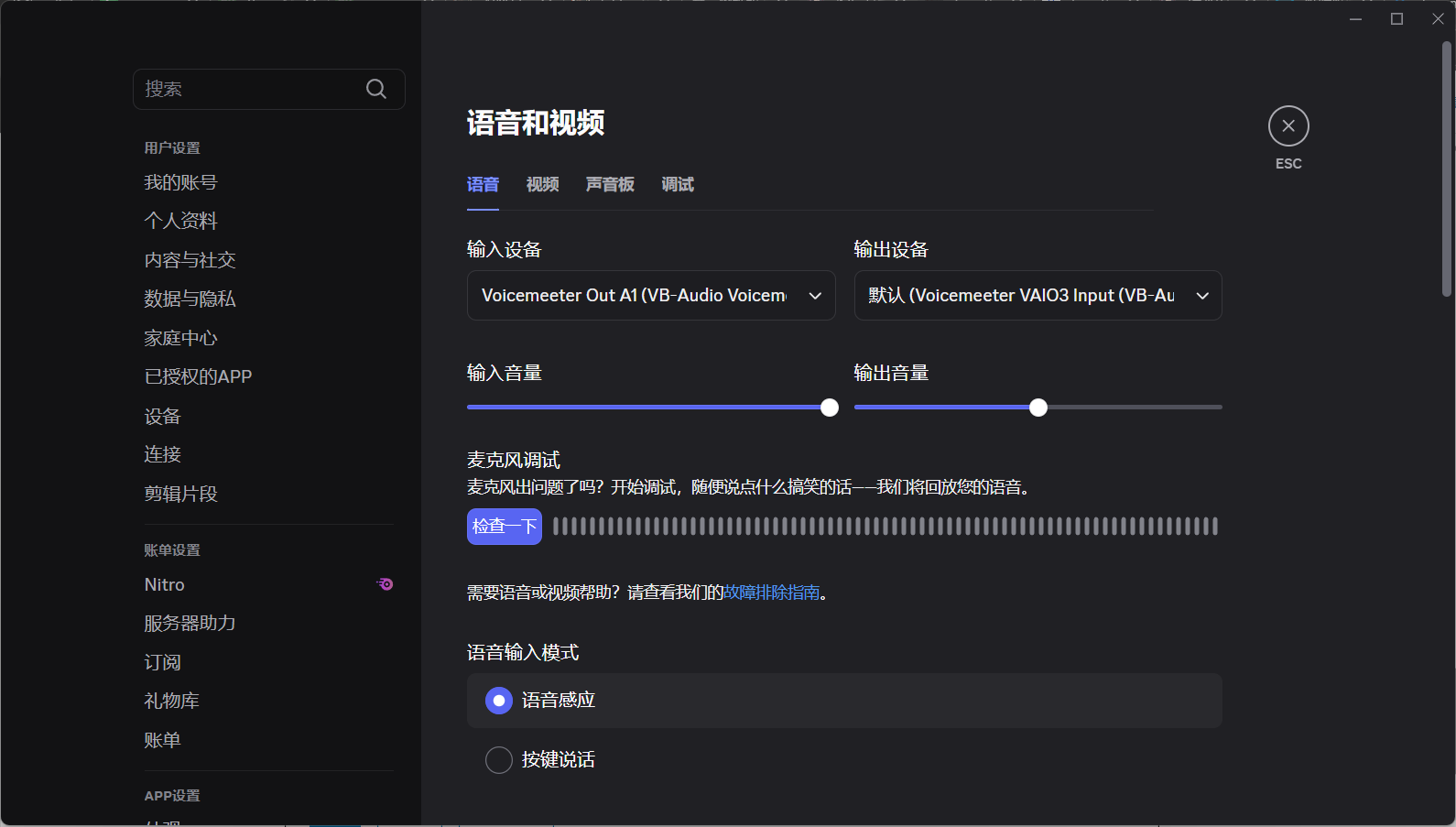
Now, whether you're speaking in Discord or in-game, your teammates will hear the voice you selected in Voicemod.
Troubleshooting:
- Question: My teammate said my voice was very soft/very loud.
- solve: Returning to the Voicemod main interface, adjust the "Input Volume" slider at the bottom. Alternatively, you can adjust the input volume in Discord's "Voice and Video" settings.
- Problem: I used a voice changer, but my teammates still heard my original voice.
- solve: The error message "99%" likely indicates that you haven't correctly selected the Voicemod virtual microphone as the input device in Discord or the game. Please double-check the settings in steps two and three.
- Problem: The sound is intermittent.
- solve: It might be due to insufficient computer resources. Try closing some unnecessary background programs. Additionally, in Discord settings, you can try disabling advanced features such as "echo cancellation" and "noise suppression," as these sometimes conflict with the voice changer.
in conclusion:
The core idea behind configuring an AI voice changer is:Switch the input devices for all software that needs to output your voice (Discord, games, live streaming software) from your physical microphone to the virtual microphone created by the voice changer.“Once you understand this, you'll be able to easily master any voice-changing tool.
© Copyright notes
The copyright of the article belongs to the author, please do not reprint without permission.
Related posts


No comments...