
# copilot tutorial: How can beginners quickly get started and improve work efficiency in three steps?
GitHub Copilot The teaching trend will continue in 2024. You can easily get started in three steps and greatly improve your programming learning and work efficiency.This article provides a complete analysis of Copilot's features, costs, installation and usage process, as well as application tips for beginners and advanced users.Copilot helps users with no prior experience get started quickly, while experienced users can also improve their productivity in one place with features like autocomplete, automated testing, and cross-language integration.Whether for learning or practical application, Copilot, an industry-leading AI programming assistant, has become a powerful new tool for developers!

What is Copilot?: A new benchmark for AI program assistants.
GitHub Copilot is a generative AI program assistant jointly developed by GitHub and OpenAI.It can analyze the code, comments, or natural language descriptions that the user is editing.Provides real-time multilingual auto-completion suggestions or directly generates functions/templates.。
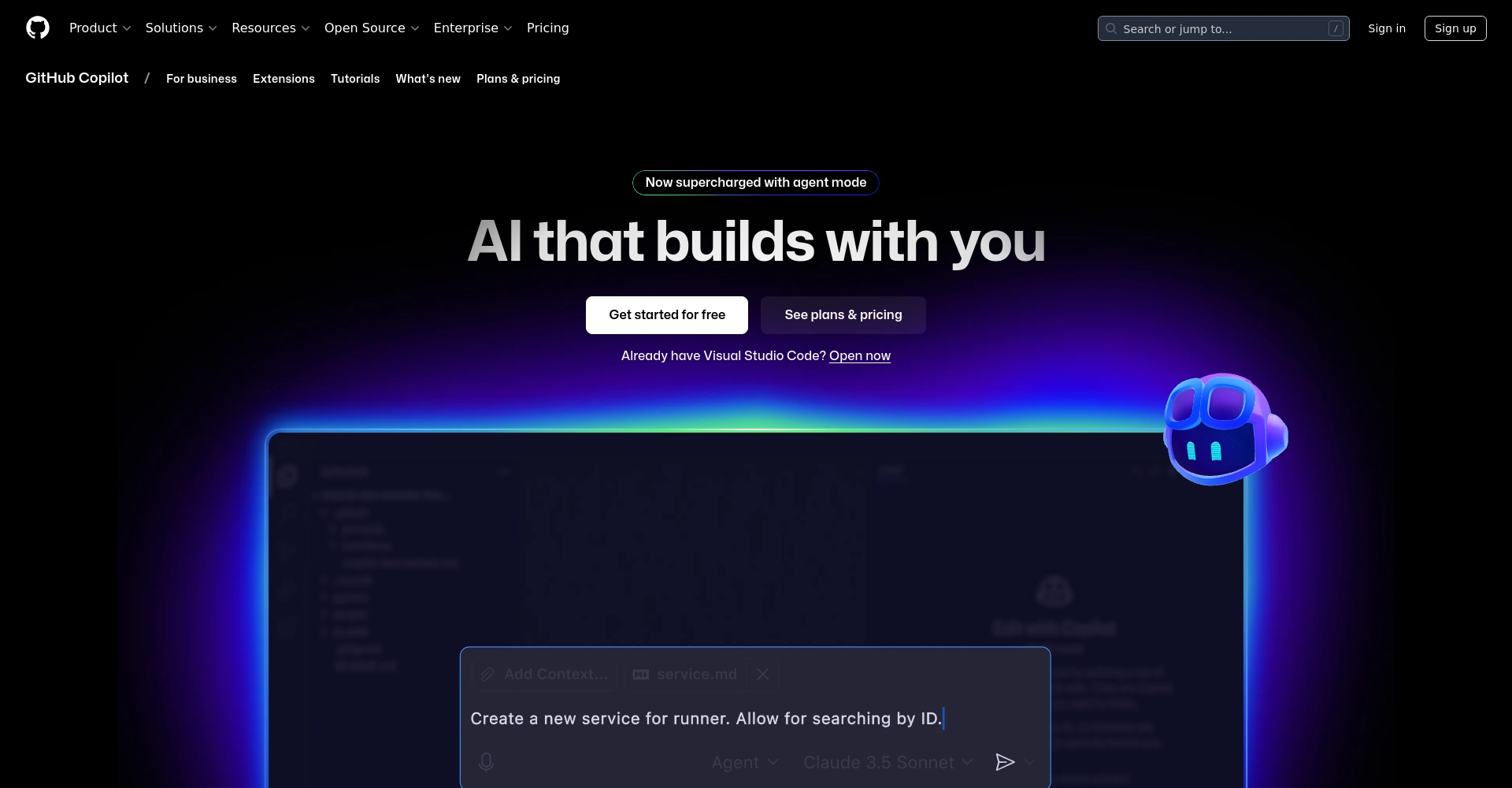
Beyond single-line completion, Copilot can generate entire blocks of code, unit tests, and even automatically generate file comments based on contextual understanding.Completely replaces the painful process of finding examples in the past.The main reason for the popularity of Copilot tutorials is that they are easy to learn and can be easily integrated with mainstream editors.
Copilot Project Overview
| Functions/Information | Content/Description |
|---|---|
| Support Platform | VS Code, Visual Studio, JetBrains, browser, CLI, Windows Terminal, etc. |
| Supported languages | Python, JavaScript, Go, C++, C#, Ruby… Officially supports over 30 languages |
| Main functions | Code completion, natural language generation, instant question and answer/code explanation, annotation generation, unit test output. |
| Payment Plan | Free/Pro/Business/Enterprise Free for students and maintainers of popular open-source projects |
| Getting Started with Links | Copilot official website |
| Start in three steps | 1. Register an account and plan → 2. Install the extension → 3. Activate & log in |
| Chinese teaching resources | Official Chinese description |

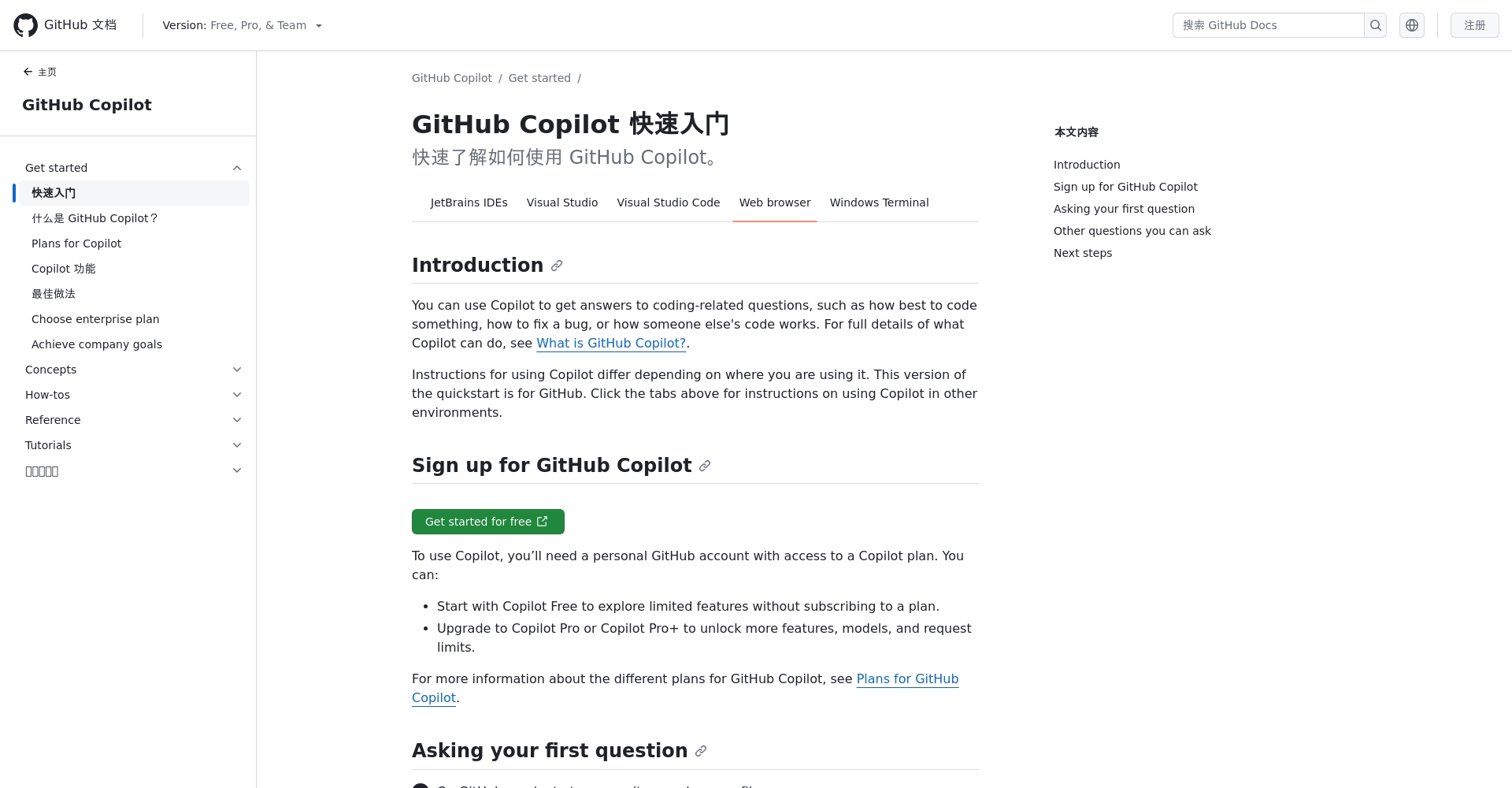
Copilot Tutorial Part 1: Three Quick Steps to Get Started
1. Register and enable Copilot
- Go to Official websiteLog in with your GitHub account
- Choose an applicable plan (free trial/Pro/student free, etc.) and subscribe according to the instructions.First month free
| plan | Monthly price | Target audience | Remarks |
|---|---|---|---|
| Free | Free | Trial/Experience | Some functional limitations |
| Pro | $10 | Individual users | Full-featured, priority model |
| Business | $19 | Team | Cross-organizational management and access control |
| Enterprise | $39 | Enterprise | Highly customized, single sign-on |
| Student/Open Source | Free | Student/Maintainer | Just get certified |
2. Install the Copilot extension to the editor.
- VS CodeSearch for 'GitHub Copilot' or 'Copilot Chat' in the 'Store' and install it directly.
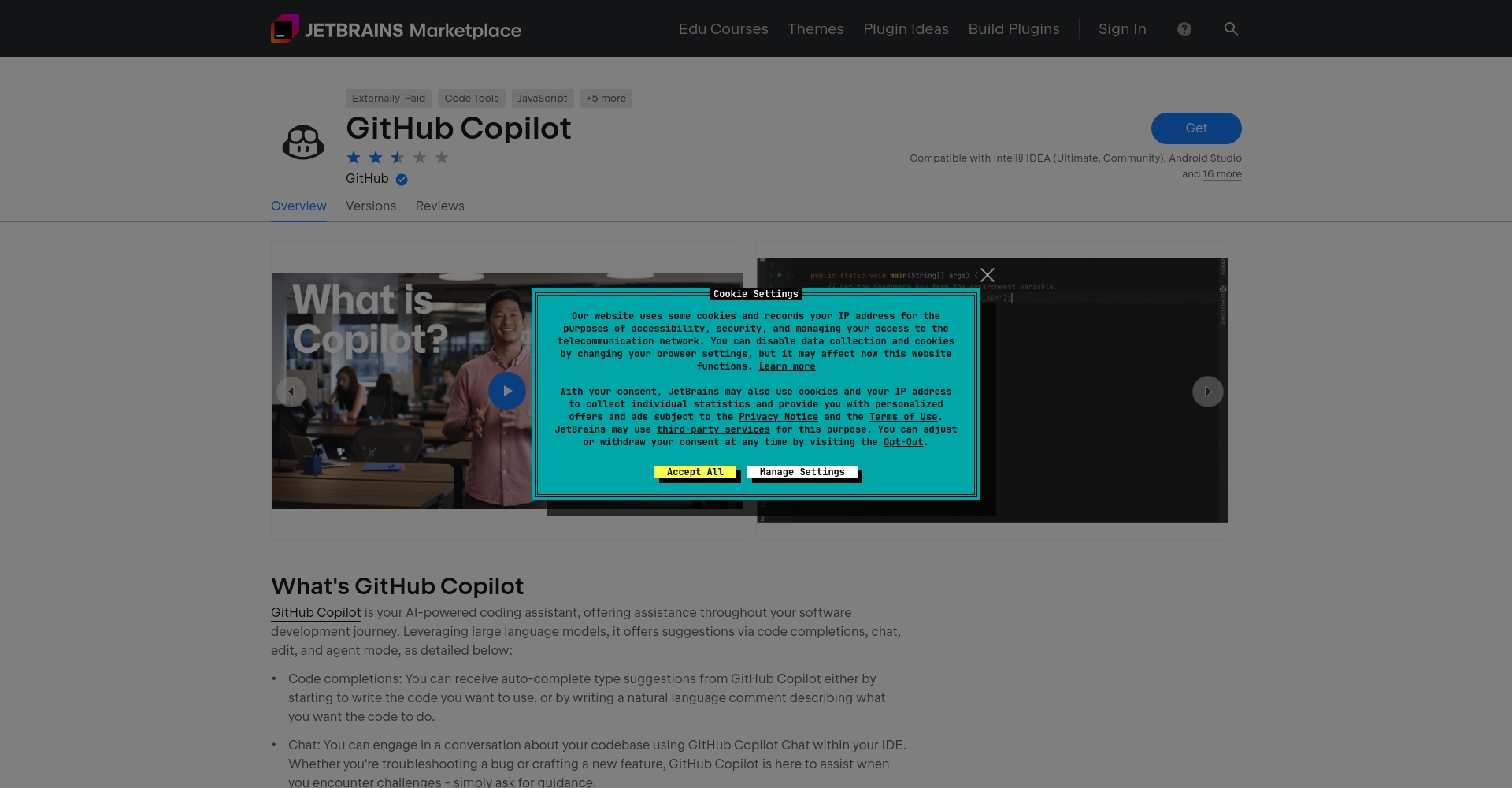
- JetBrains IDEsVisit Official Plugin Page install
- Visual Studio / CLI / Terminal:according to Official Documents Steps
- Web usersEnable Copilot features directly in the GitHub editor.
3. Log in, activate, and start using.
- In the Copilot editor menu, select "Start Validation".“
- Allow GitHub to grant permissions via browser pop-up.
- Once verification is successful, the Copilot icon will light up, and automatic completion will begin.
If you have any questions, please refer to the following: Official operation video 或 Official Chinese teaching。
Copilot Tutorial Part 2: Practical Function Operation and Beginner's Guide to Improving Efficiency
Real-time intelligent auto-completion during editing
- When actually coding, Copilot will automatically display useful suggestions; simply press the Tab key to insert them with one click.
- To see more options, press Ctrl+EnterUp to 10 different spellings can be displayed.
Copilot Chat: Resolve problems through direct dialogue
- Enable the Copilot Chat panel (click the dialog icon in VS Code, and look at the Copilot Chat sidebar in JetBrains).Ask questions like "Explain this passage" or "Help me write a quiz."
- The AI immediately sends back detailed explanations and code, which is very helpful for beginners to improve their understanding.

Multilingual support and high cross-platform compatibility
It supports multiple main process languages including Python, JavaScript, Go, C#, Ruby, etc.One-stop solution for front-end/back-end/cloud development
Copilot Advanced Applications List
| Functional Scenarios | Operating Instructions | Operation entrance |
|---|---|---|
| Automatic completion of commonly used code blocks | Input comments/function names to generate automatically | Tab Accept |
| Generate unit tests/annotations | Enter your requirements directly | Chat input |
| Code optimization and refactoring | Pasting existing code requires optimization | Chat input |
| Error Troubleshooting/Error Explanation | Please paste the error message and request a detailed explanation. | Chat input |
| Multilingual conversion | Describe the original + target language | Chat input |
| Automatic document/annotation generation | The query will automatically add annotations and explanations. | Chat input |
| Learn the API or its usage | Search for new technology teaching | Chat input |

Copilot Practical Feature Comparison Table (with ChatGPT)
| Comparison Items | GitHub Copilot | ChatGPT |
|---|---|---|
| Complete method | The editor provides real-time auto-completion. | The chat interface requires pasting back into the editor. |
| Supported languages | 30+ main process languages | The most widespread, but often requires clear guidance. |
| contextual understanding | Automatically connects project files and accurately completes them. | The file content needs to be pasted repeatedly. |
| Generate unit test | Support (direct command issuance) | New topic dialogue needs to be created |
| Free plan | Free for students/open sourcers | There is a free version; premium versions require an additional fee. |
| Natural language commands | Support (e.g., "Write a RESTful API") | support |
Copilot Teaching FAQs and Practical Techniques
Q1: Is the copilot tutorial suitable for complete beginners?
Answer: Absolutely suitable!The official explanation is clear.Most users can get started in 30 minutes.。
Q2: How to improve the hit rate and usability of Copilot?
- With clear comments and function naming, Copilot understands your needs better.
- Try asking questions in natural language: "How can I do this?" or "Rewrite it in XX language".
Q3: Will Copilot have bugs?
Can!All AI-generated codes require manual review. Copilot provides the best reference, but it should not be relied upon entirely.You need to check and test it yourself.。
Advanced development directions after learning Copilot
The official recommendation is to train in Prompt Engineering, combine it with plugin and team collaboration, and continue exploring. Further teachingThe new version of Copilot also gradually integrates command line, PR summaries, and multi-platform AI intelligent dialogue!
By effectively utilizing Copilot, the learning curve and workload can be significantly compressed, allowing beginners to quickly experience AI productivity in three steps.
Developers' future competitiveness will depend on AI efficiency and self-learning, and Copilot is precisely the starting point for this.
© Copyright notes
The copyright of the article belongs to the author, please do not reprint without permission.
Related posts




No comments...