How to Generate Article Content with ChatGPT in One Click?
This article tutorial is specially written for promoters who want to edit/publish articles in the background of PornAI Navigation site, this article will teach you step by step how to generate an SEO article suitable for ranking through ChatGPT, and publish the article on the website to gain traffic, earn Fengyue coins, promote other products, etc.
If you do not have permission to log in to the background, please take the initiative to contact the site administrator or the AI Fengyue team. If you have successfully logged in to the backend, please continue reading:
Step 1: Go to ChatGPT
Please click the following link to go to ChatGPT:
Website: ChatGPT
Link: https://chatgpt.com/
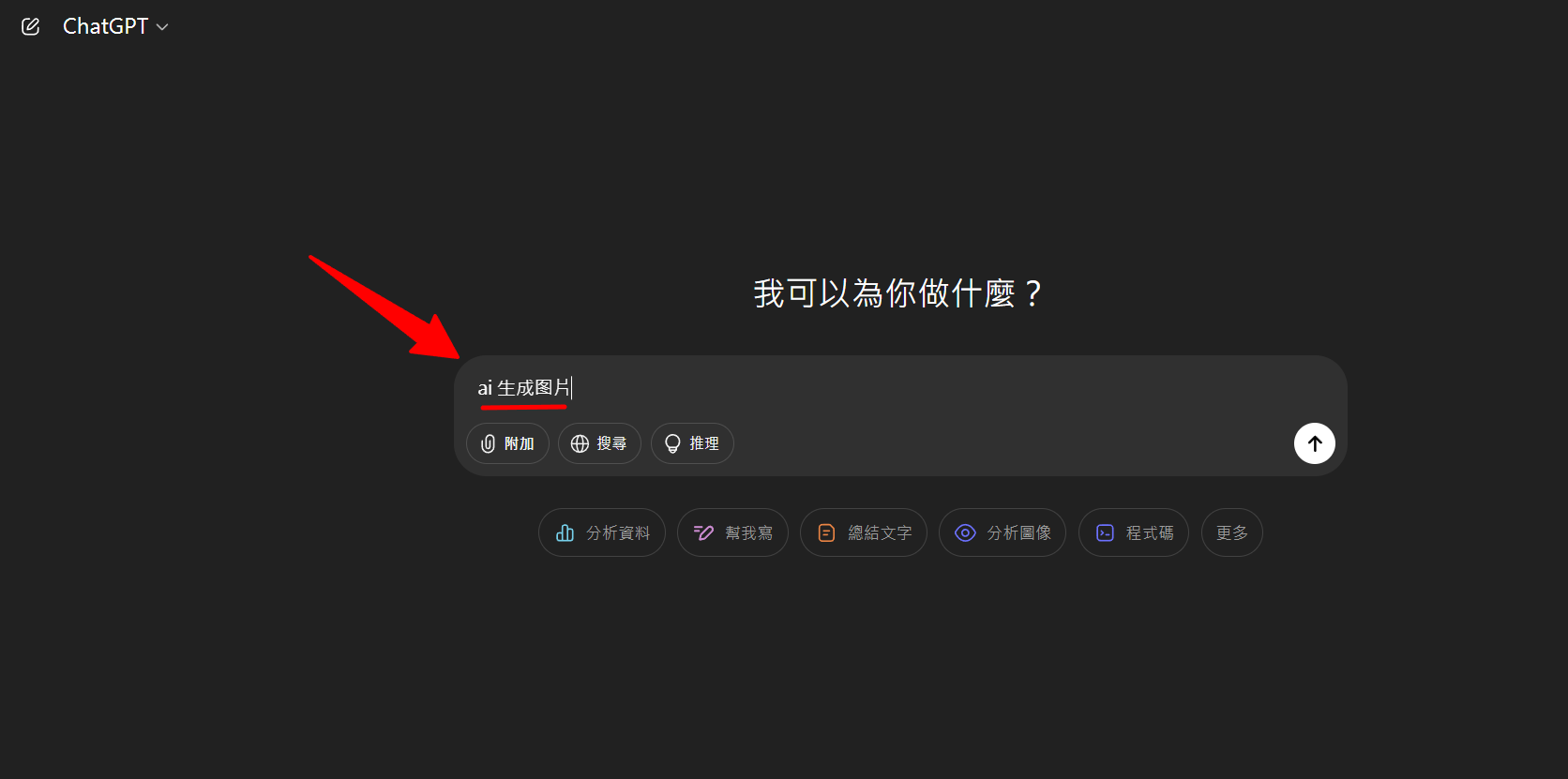
Step 2: Enter keywords
Start by filling in keywords, such as the topic of this keyword you want to write ai 生成圖片 about today:
Step 3: Generate an article with AI
Then copy and paste the following prompt and let the AI generate the full article for you:
請撰寫以上這篇文章標題的長篇文章內容,重新給我3頁以上的文字。請勿隨意捏造內容或產品服務,請上網找資料再來撰寫。這篇文章底部不要有"總結" 標題,請只給我在底部插入一段文章結尾的用來結束的內容就好。 ## 文章撰寫說明- 請用簡體中文給我- 文章內H2 標題、H3 標題文章結構清晰適合閱讀- 請將文字的重點加上粗體- 請將文章與清單與表格整合在一起,表格請分散在文章中- 文章內容前請加上文章標題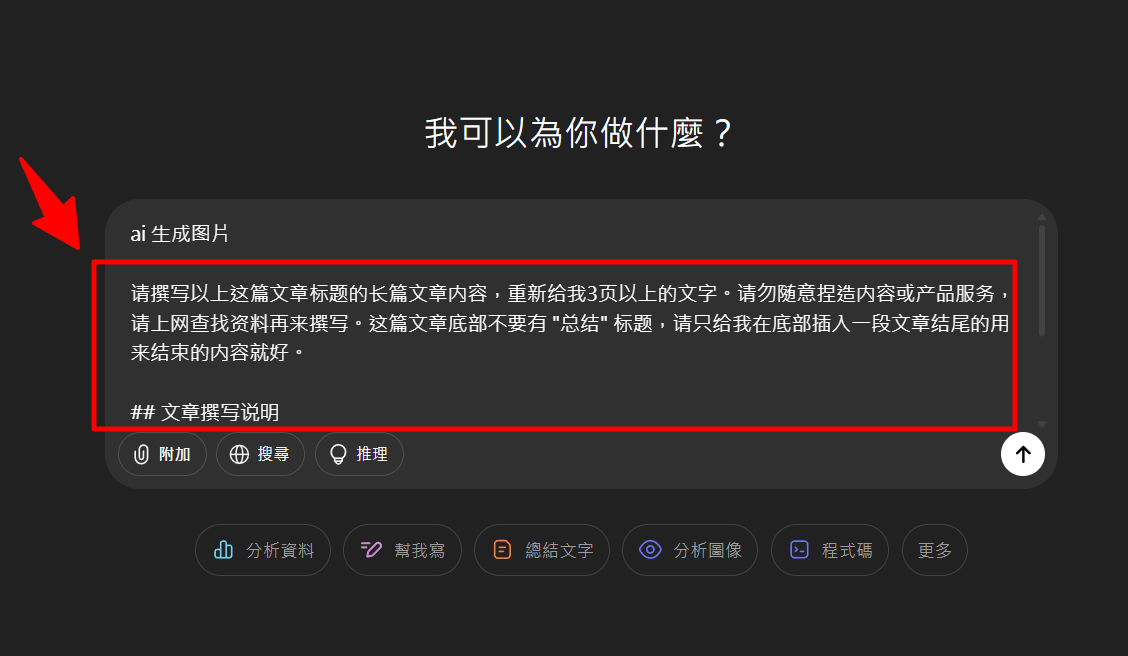
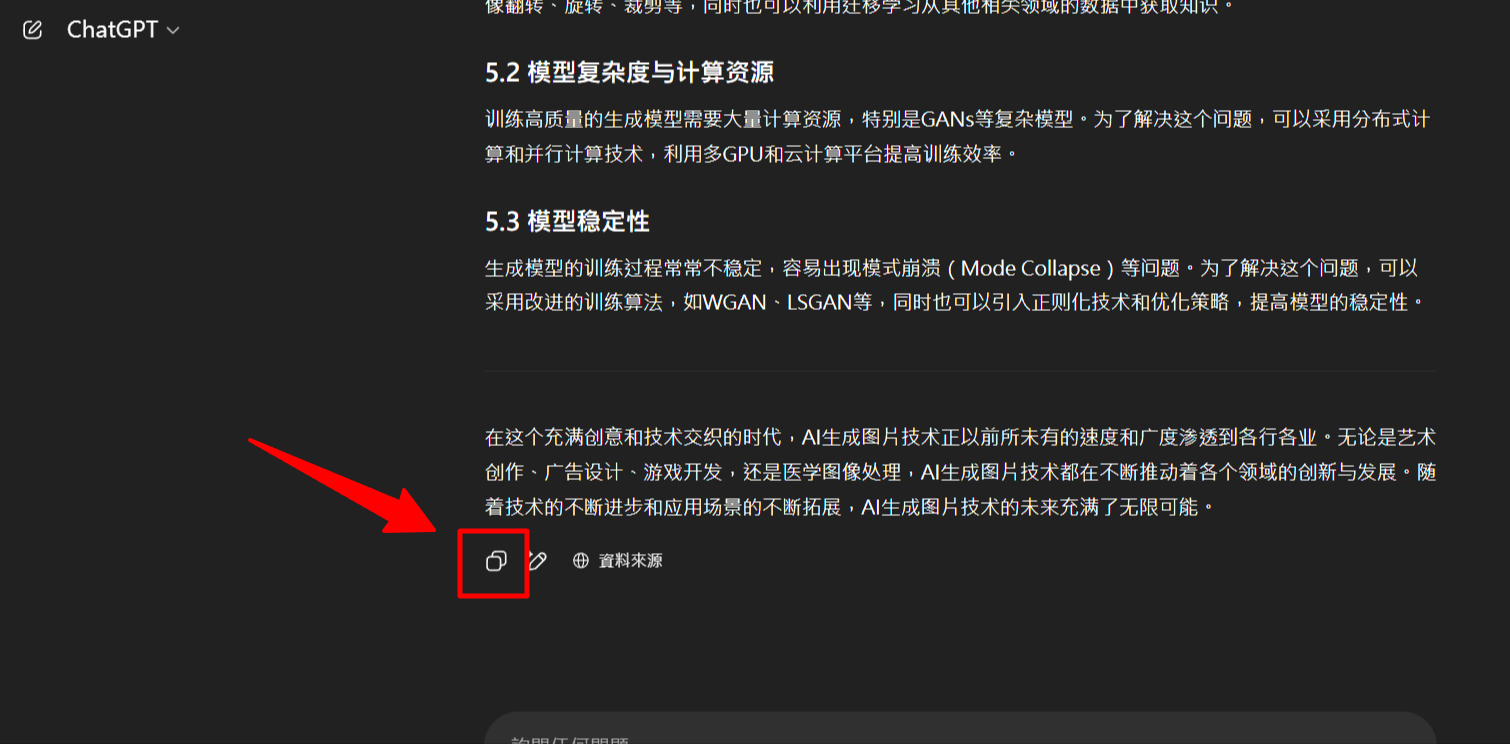
Step 4: Copy the content of the article
Then scroll down and click “Copy icon” to copy the article with one click:
Step 5: Add a new article and paste the content of the article
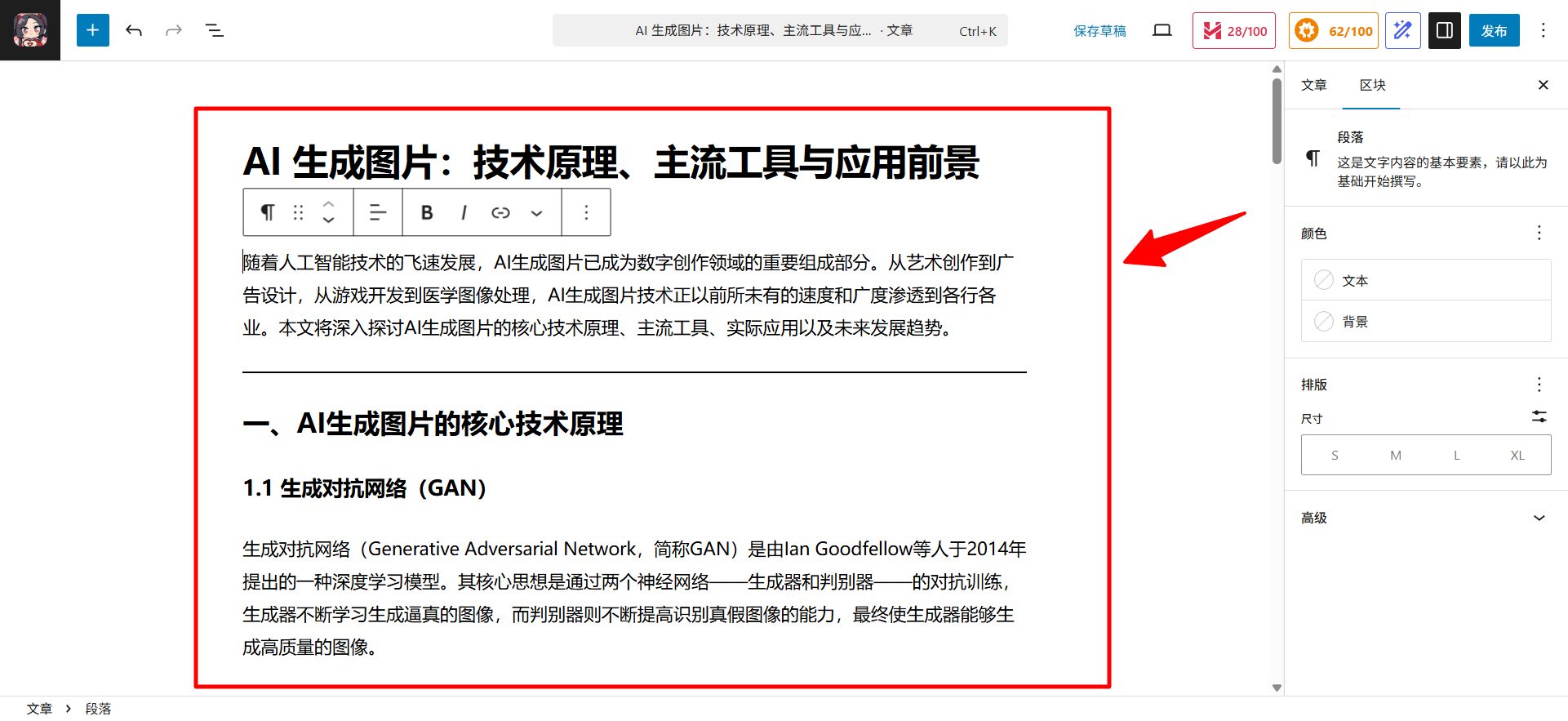
Then come to the background of this site, add a new article, and paste the content of the article you just copied:
Step 6: Insert the picture
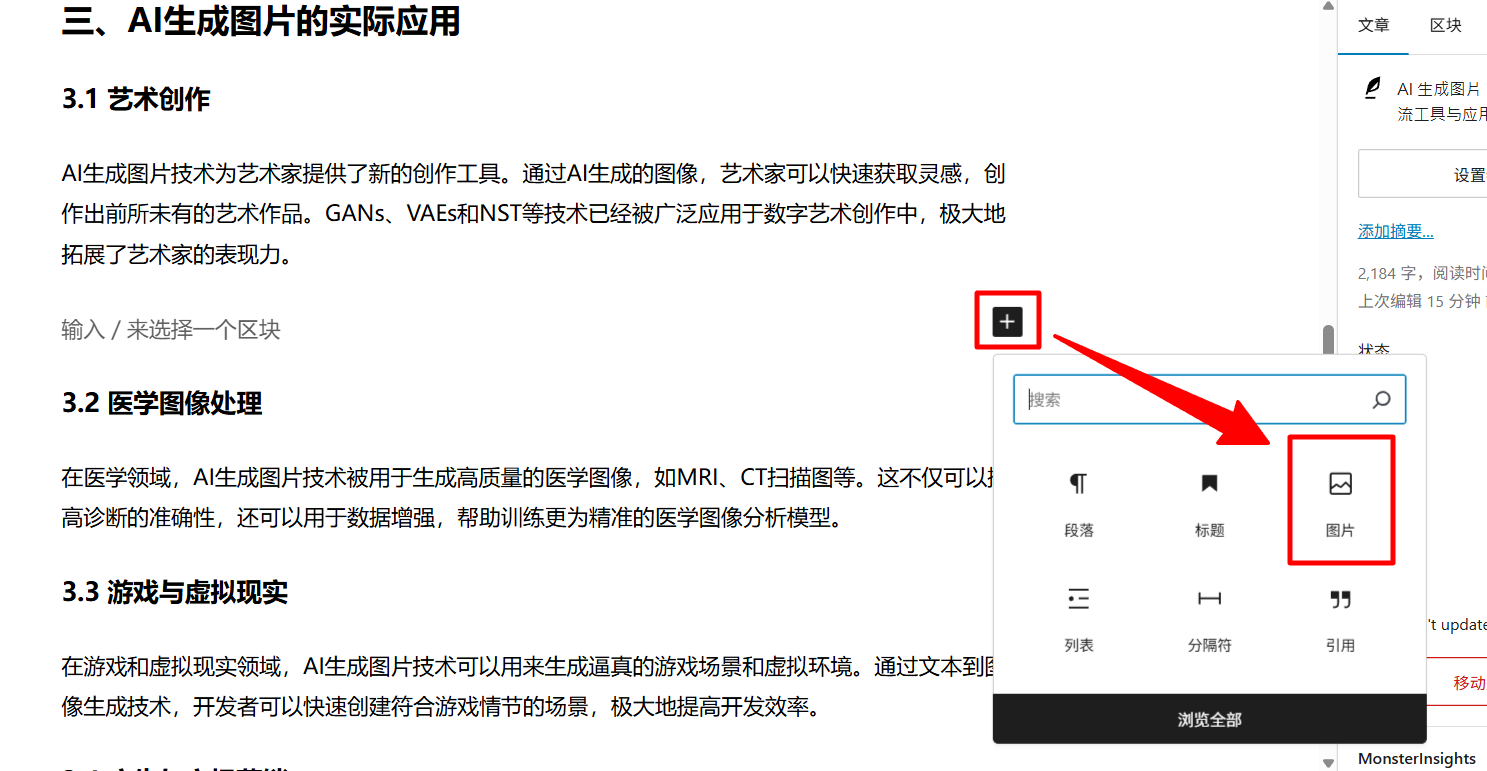
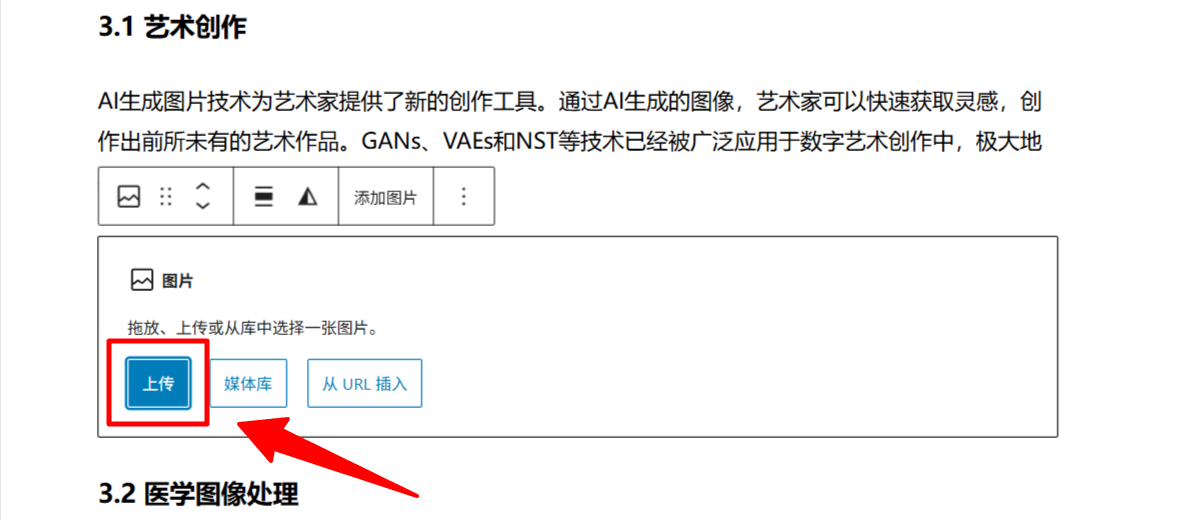
The next step is to optimize the article and insert multiple suitable images into the article, which you can find in the free gallery to use. Here are a few of my commonly used gallery websites for you:
- Pixabay: Millions of free images, vectors, and videos can be used for commercial purposes without attribution.
- Pexels: Lots of high-quality, modern-style free photos and videos that can be freely used for commercial purposes.
- Unsplash: Known for high-resolution and artistic photography, all images are free for commercial use.
- Freepik: Provides a large number of free vectors, icons, and photos, and is an important resource for designers (free version requires attribution).
- 💕 Image Generator: You can also choose to use the AI Fengyue platform’s image generation card to generate images for use.
Step 7: Add a featured image
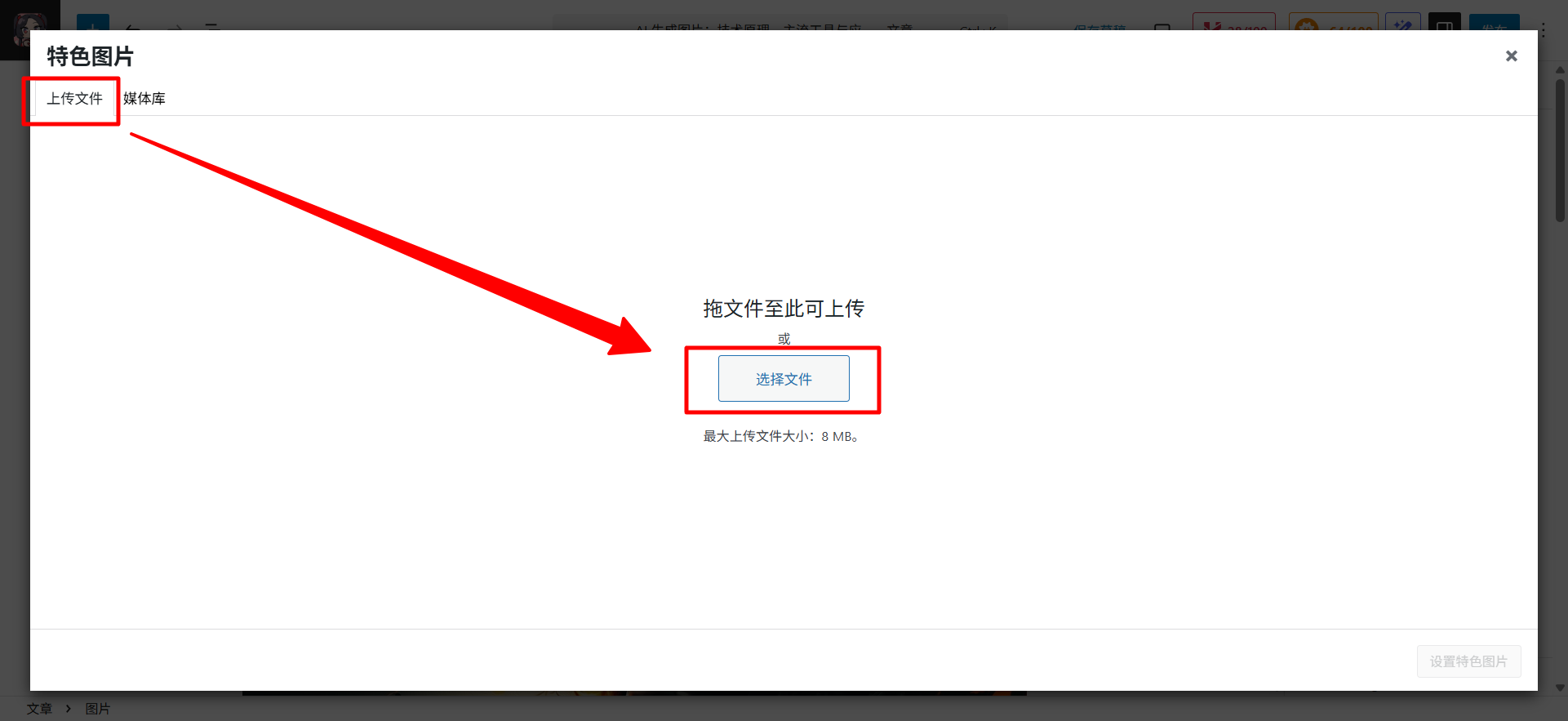
If you have completed the article, remember to set the featured image for this article, please click the Set Featured Image option in the upper right corner:
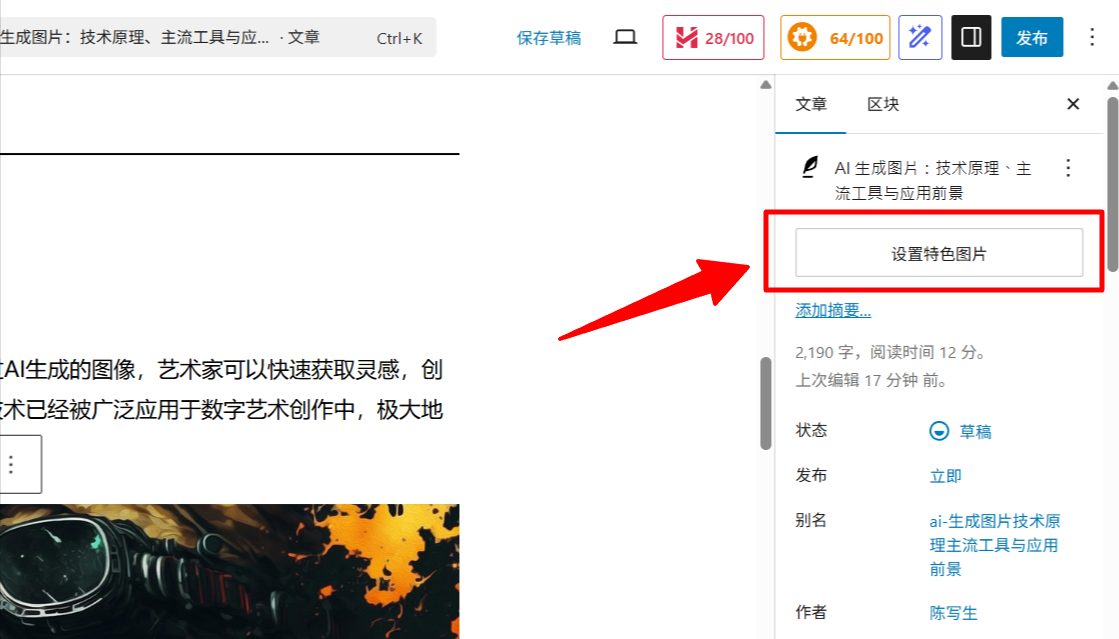
Select Upload File → Select File to upload your image, and that’s it:
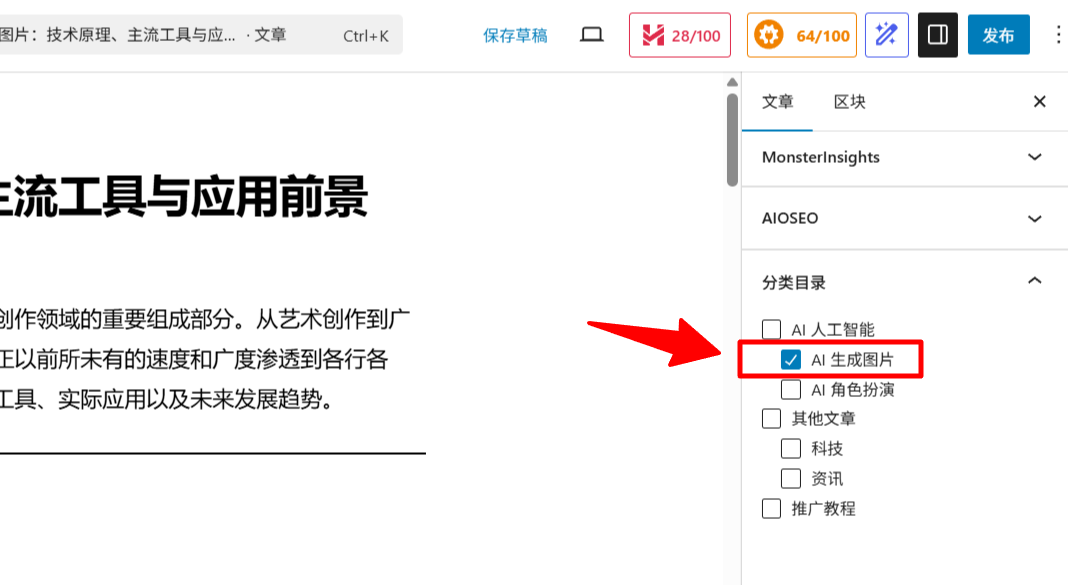
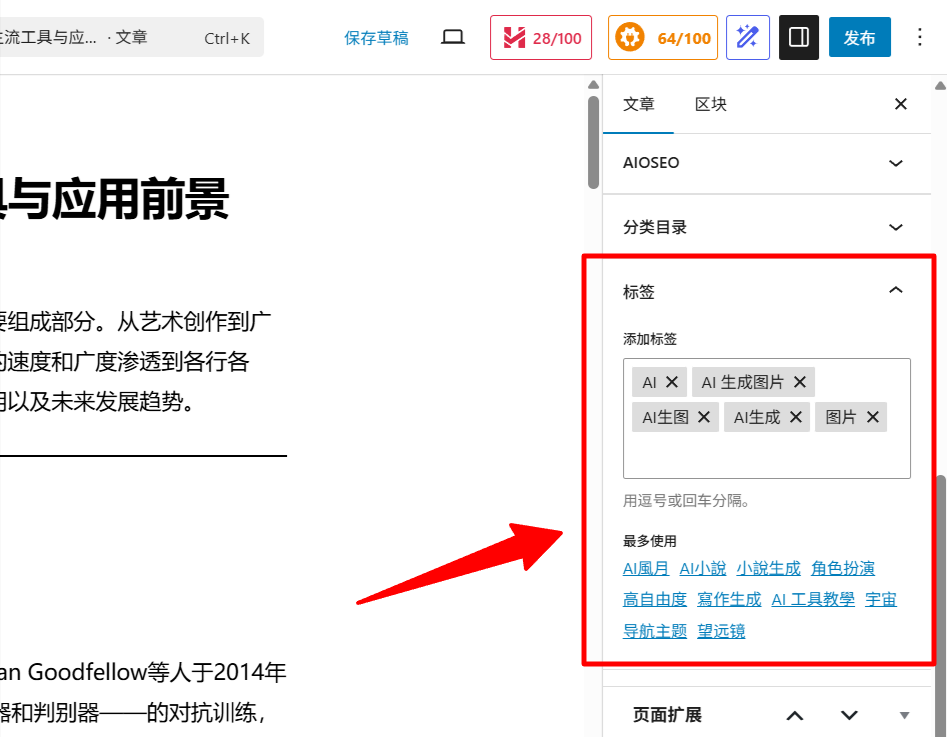
Step 8: Select Article Categories & Add Article Tags
Then add categories andtags to this post in the lower right corner:
Step 9: Publish the article
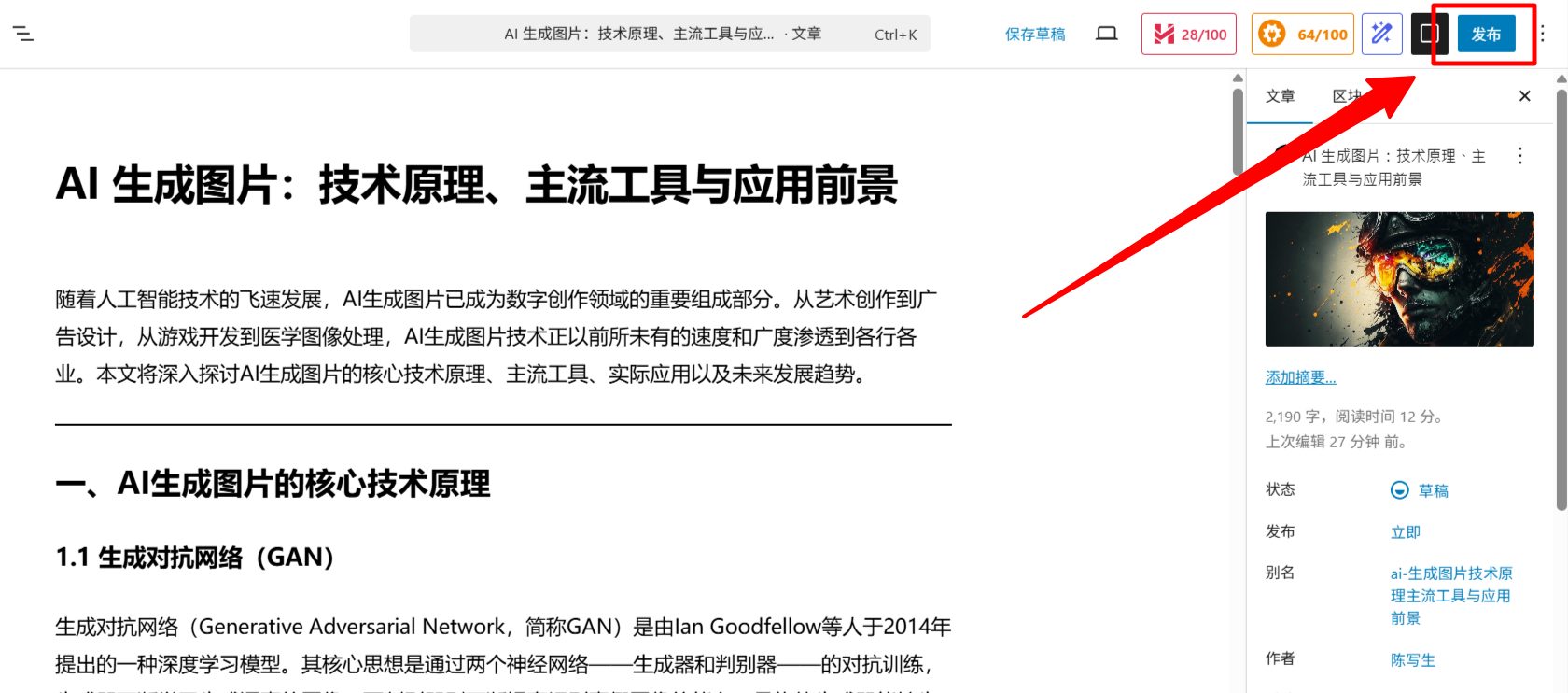
Once you’re all right, click the Publish button in the top right corner to publish your article:
Finish!
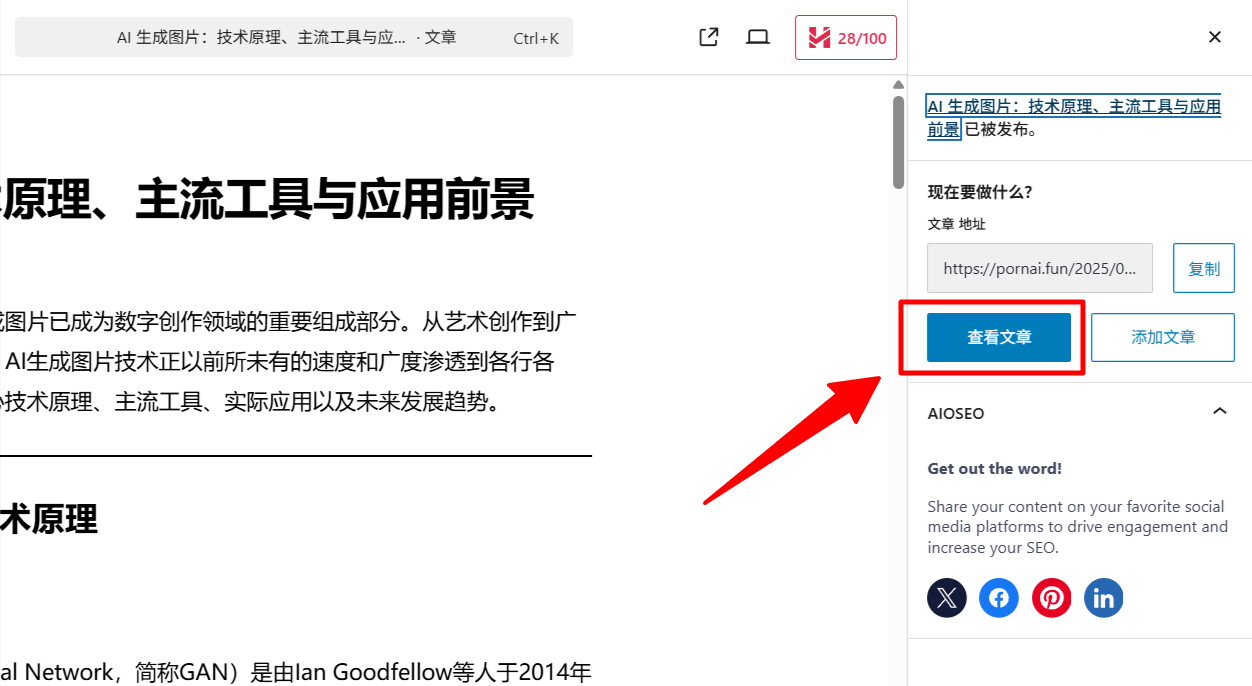
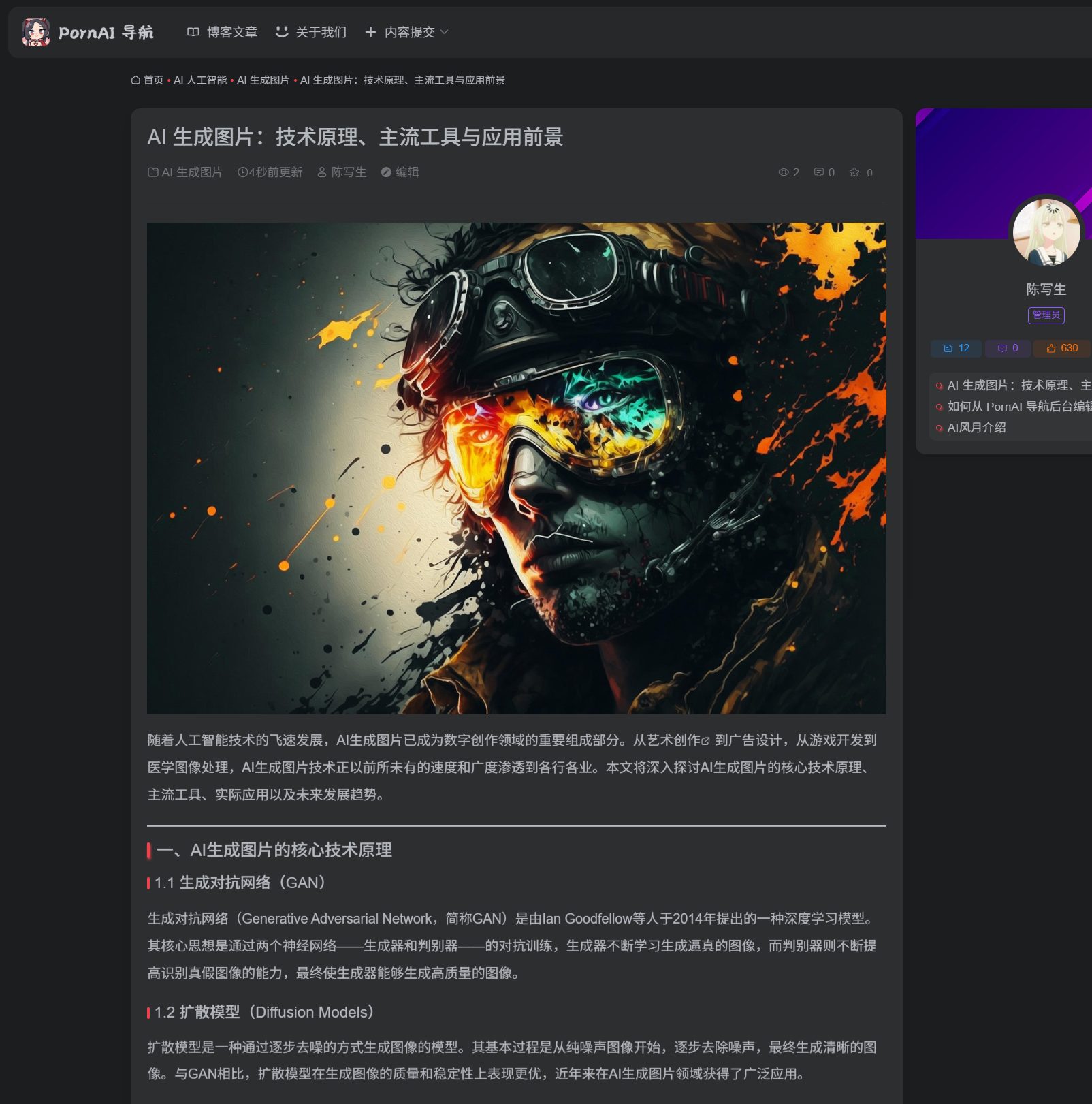
Congratulations, this is the article published, you can click View article in the upper right corner, go to the website front desk to view your article:
The article was successfully published and displayed in the foreground of the website:
© 版權聲明
文章版權歸作者所有,未經允許請勿轉載。
相關文章


暫無評論...
