
How to use Zoom AI Companion? 4 practical tips to improve meeting efficiency and a guide to avoiding common pitfalls.
zoom ai companion是Zoom collaboration platformThe integrated AI assistant, officially launched in 2024, offers features such as automatic summary of meeting key points, intelligent Q&A, action plan recommendations, and data integration.Significantly improves team meeting efficiency and execution.This article will provide a comprehensive explanation of how to activate the feature and practical usage tips, combined with authoritative data.Detailed explanation of 4 major practical and efficient application scenariosAt the same time, it focuses on analyzing common misconceptions and avoidance strategies, providing guidance for AI-driven meeting innovation for enterprises and individuals.

Zoom AI Companion Product Features and Activation Methods
What is Zoom AI Companion?
zoom ai companionIt is the AI assistant embedded in Zoom Workplace, featuring core capabilities such as AI-powered meeting summaries, instant question and answer, intelligent action recommendations, and collaborative data integration.Free for paid usersIt is compatible with all scenarios of digital office work.
| Zoom AI Companion Core Functions | illustrate |
|---|---|
| AI summary of meeting content | Automatically organize key points, action items, decisions, etc. |
| Ask a question/answer a question immediately | Natural language search for answers during meetings |
| Action recommendations and task allocation | Meeting content generates to-do items |
| Cross-platform file integration | Multi-format documents, cloud collaboration |
For more official information, please see:Zoom AI Companion official page。
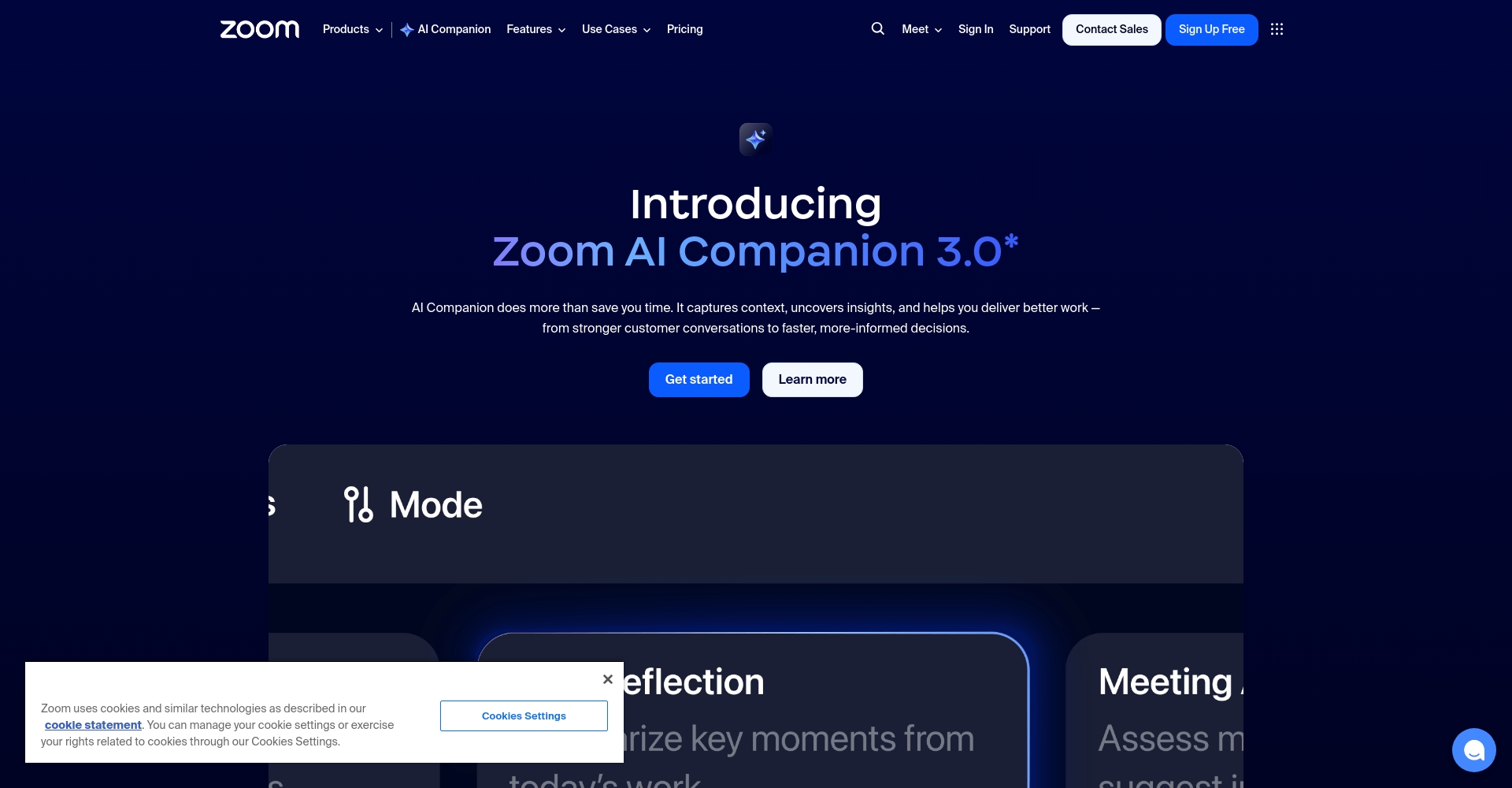

How do I enable the Zoom AI Companion feature?
- Available only to paid businesses, educational institutions, and professional organizations.。
- The administrator can enable the AI feature in the Zoom backend: Log in to the website → Settings → AI Companion section.
- To start/experience a meeting, simply tap the diamond icon on the personal user meeting interface.
- Once enabled, the meeting control panel will have dedicated AI options (such as "Meeting Summary" and "AI Q&A").
- We recommend upgrading to the latest version of Zoom to ensure the latest AI and security features.
Quick access:Zoom Download | Official operation guide
4 Practical Tips for Improving Meeting Efficiency with Zoom AI Companion
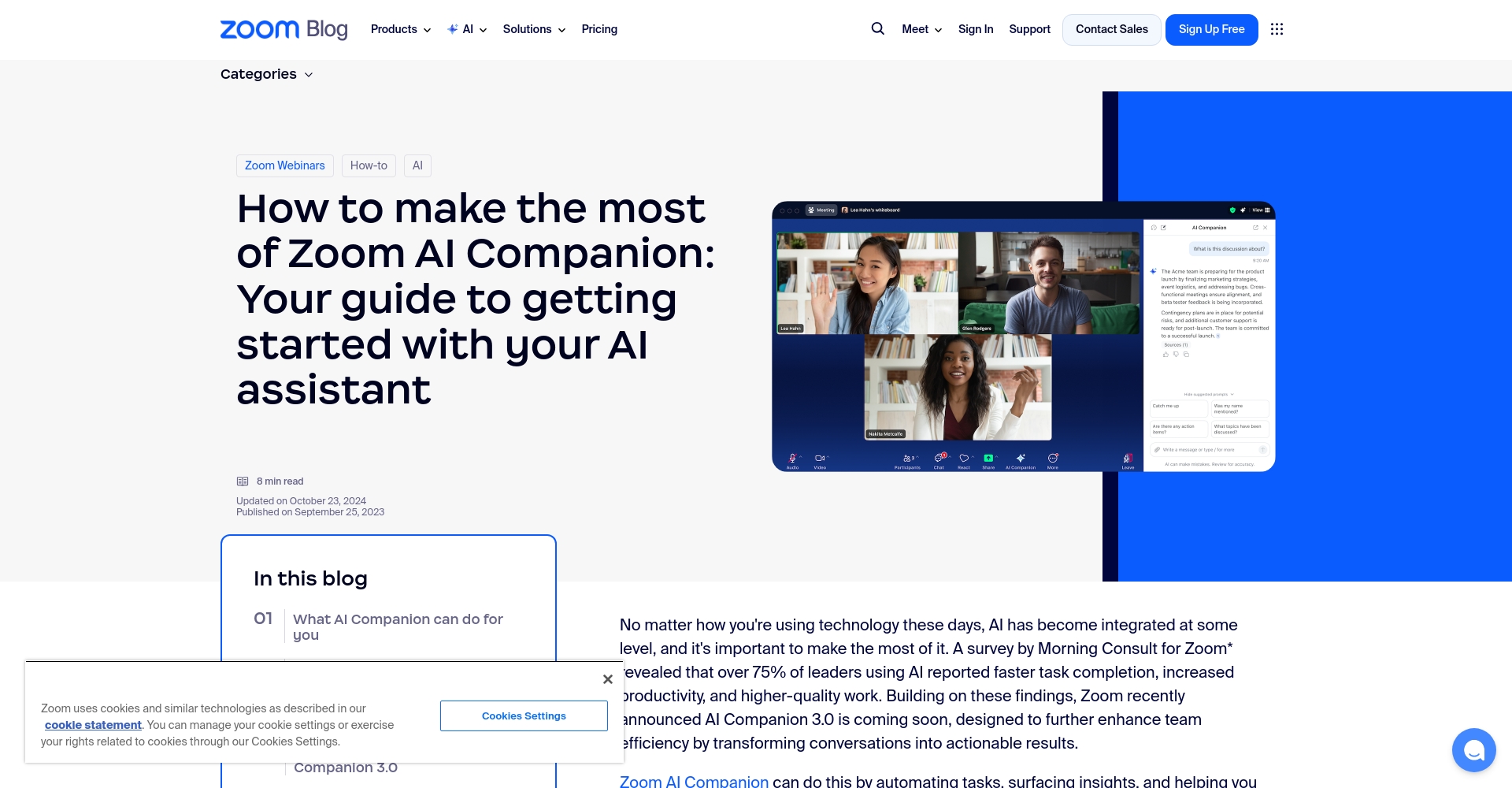
Tip 1: One-click AI meeting summary, highlighting key points without omission.
Zoom AI Companion can automatically generate meeting summaries.It makes it clear to those who are absent, and summarizes all decisions, to-dos, and member contributions without the need for handwritten notes.
- Click the AI Companion button during or after the meeting to get the automatically summarized text.
- It is recommended that the host set up automatic summaries and select the sharing scope themselves.
Tips to avoid pitfalls:
- Pay attention to data policy compliance: Some industries/countries have privacy restrictions, so confirm in advance!
- The summary only covers the audio content; the whiteboard/attachments need to be added manually.
| Skill | Operating steps | Scene | Typical misconceptions |
|---|---|---|---|
| AI Summary of the Conference | AI-powered summaries and automated email pushes were enabled during the meeting. | Frequent absences/requiring follow-up | Unauthorized access prevents external members from viewing. |
Tip 2: AI-powered intelligent questioning and semantic querying for real-time knowledge supplementation during meetings.
Q&AParticipants can ask questions in natural language, such as "Who is responsible for XX?" or "Conclusion?" The AI can then access the entire meeting record and return accurate answers.
- Especially suitable for cross-departmental/multi-person meetings, allowing for knowledge supplementation during the discussion.Reduce repeated questions。
- When permissions are disabled by default, they need to be enabled by the host in the backend.
- Ensuring clear speech and regulated pronunciation, AI responses are more accurate.
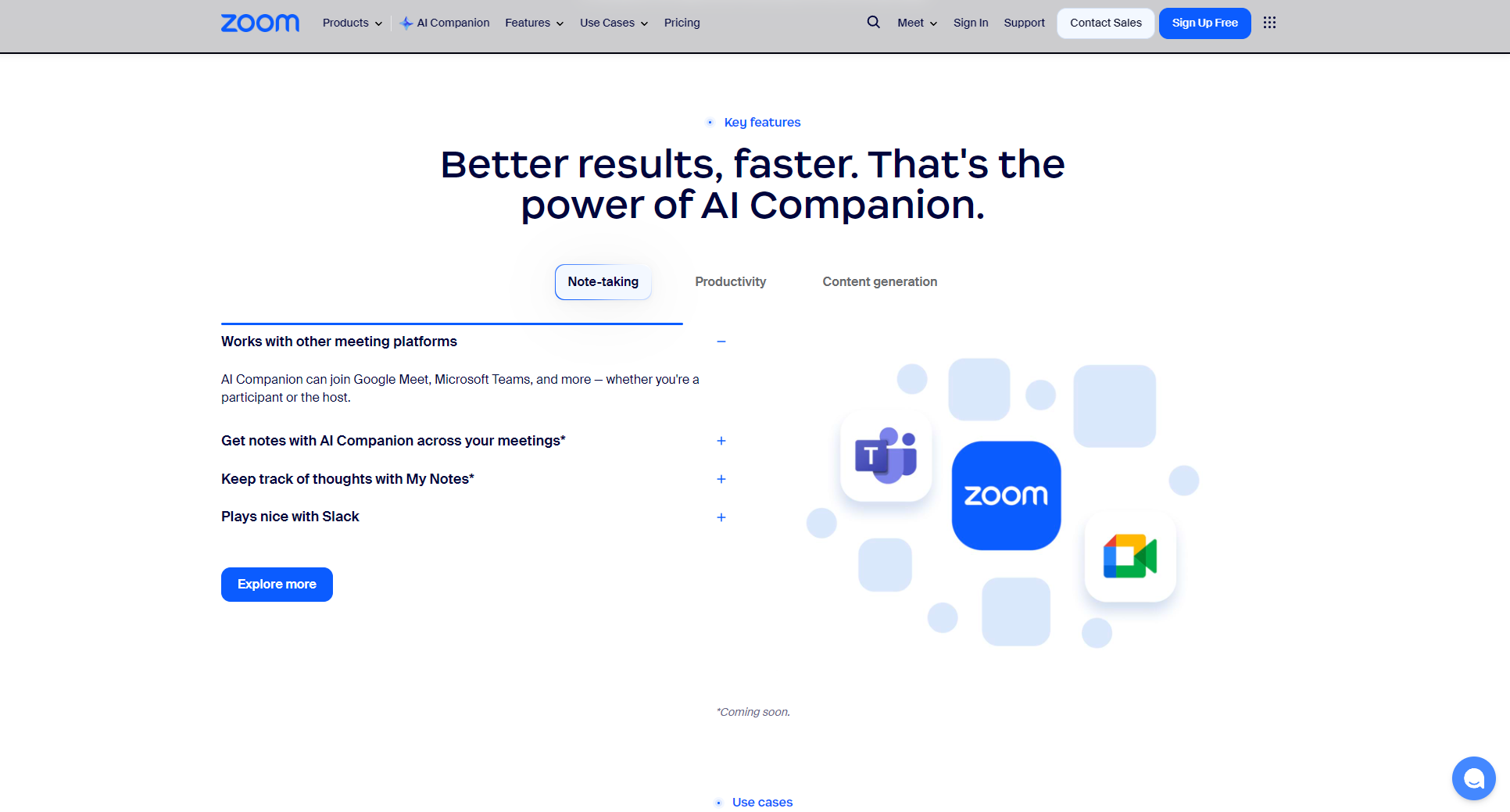
Tip 3: AI-powered meeting action planning to reduce omissions and ensure follow-up.
Zoom AI Companion can capture key points of discussions, automatically generate functional to-do lists, and support assignment tracking.。
- During the meeting, click on the AI sidebar - "Automatically generate tasks".
- After the meeting, an AI-generated task list will be created, which the host can manually adjust and assign.
- It can be synced to Zoom Tasks or third-party task platforms.
Highlights and Avoid PitfallsEven if the AI assigns the task incorrectly, it still needs to be confirmed manually by the host. The AI's ability to assign complex tasks still needs improvement.
Tip 4: AI document summarization and data integration accelerate decision-making and multi-platform collaboration.
Beyond summarizing meetings, AI can also perform summarization and knowledge extraction from PDF/Office/Google documents.All of them will be archived in the meeting resource area.
- After uploading a document, instruct the AI to "extract key points" or "organize Q&A". Collaborative documents are supported, and automatic cloud archiving is enabled.
- Prevent information leaks and set access permissions in advance.It is recommended to convert images or scanned documents to text format for easier AI processing.
Zoom AI Companion Troubleshooting Guide: Common Issues and Solutions
Permissions, privacy and compliance issues
| question | Suggested solution |
|---|---|
| No AI Companion option | Administrators should set unified permissions and upgrade versions promptly. |
| Concerned about the leakage of secrets | SeeOfficial Privacy PolicyAnd restrict the scope of AI analysis in the background. |
| The industry needs to archive the original document. | Enable AI and select simultaneous storage of original text and audio. |
Technical issues and functional limitations
- Speech recognition is susceptible to noise/accent, resulting in inaccurate summarization.
- English is the primary language, with Chinese and other languages being continuously improved.
- Response times may be slow during peak periods; for important meetings, it is recommended to prepare AI summary templates in advance.
How should responsibility be assigned for AI-generated content?
- AI should only be used as an aid; key decisions must be reviewed by humans.
- A clear review process was established before the meeting to prevent errors and omissions, and automatic summarization was implemented.
Comparison of Zoom AI Companion with other AI collaboration tools
| Tool Name | AI Summary of the Meeting | Ask questions instantly | Action distribution | Third-party integration | Pricing |
|---|---|---|---|---|---|
| Zoom AI Companion | ✔ Yes | ✔ Yes | ✔ Yes | ✔ Google/Office | Free within paid content |
| Teams Copilot | ✔ Yes | ✔ Yes | ✔ Yes | ✔ Microsoft Ecosystem | Additional purchase required |
| Google Duet AI | ✔ Yes | ✖ None | ✔ Yes | ✔ Google Docs | Additional purchase required |
| Notion AI | Partial support | ✖ None | ✔ Yes | ✔ Notion | Additional purchase required |
Conclusion
A new era of office work driven by AIZoom AI Companion is increasingly becoming a smart tool for businesses and individuals to improve meeting efficiency.Before application, compliance, privacy, and workflow settings should be assessed. Combining four key techniques—automatic summarization, intelligent Q&A, action assignment, and data organization—can help avoid common pitfalls and efficiently unlock the value of meetings. (For those who haven't tried it...)We recommend upgrading your Zoom version to immediately start enjoying a new smart meeting experience.!
If you have any questions, please see [link/details].Zoom AI Companion Learning Center。
© Copyright notes
The copyright of the article belongs to the author, please do not reprint without permission.
Related posts




No comments...