
Stop saying the Chinese version of Notion is ugly! Here are 11 aesthetic templates you can use directly.
[Aesthetics Fundamentals] Deconstructing an Excellent Notion Page: Three Pillars and Practical Techniques
Many people find Notion's Chinese website unattractive, stemming from a lack of understanding of its design logic. Notion's aesthetics are not traditional "decoration," but rather a "structured" beauty. An excellent Notion page, like a well-designed building, has its beauty built upon a clear framework. This article will deconstruct this aesthetic, revealing its three pillars.
Pillar One: Hierarchy – Keeping Information Organized
Clutter is the enemy of aesthetics. When all text is crammed together with the same size and style, the brain gets tired. Establishing a clear visual hierarchy is the first step in beautifying a webpage.
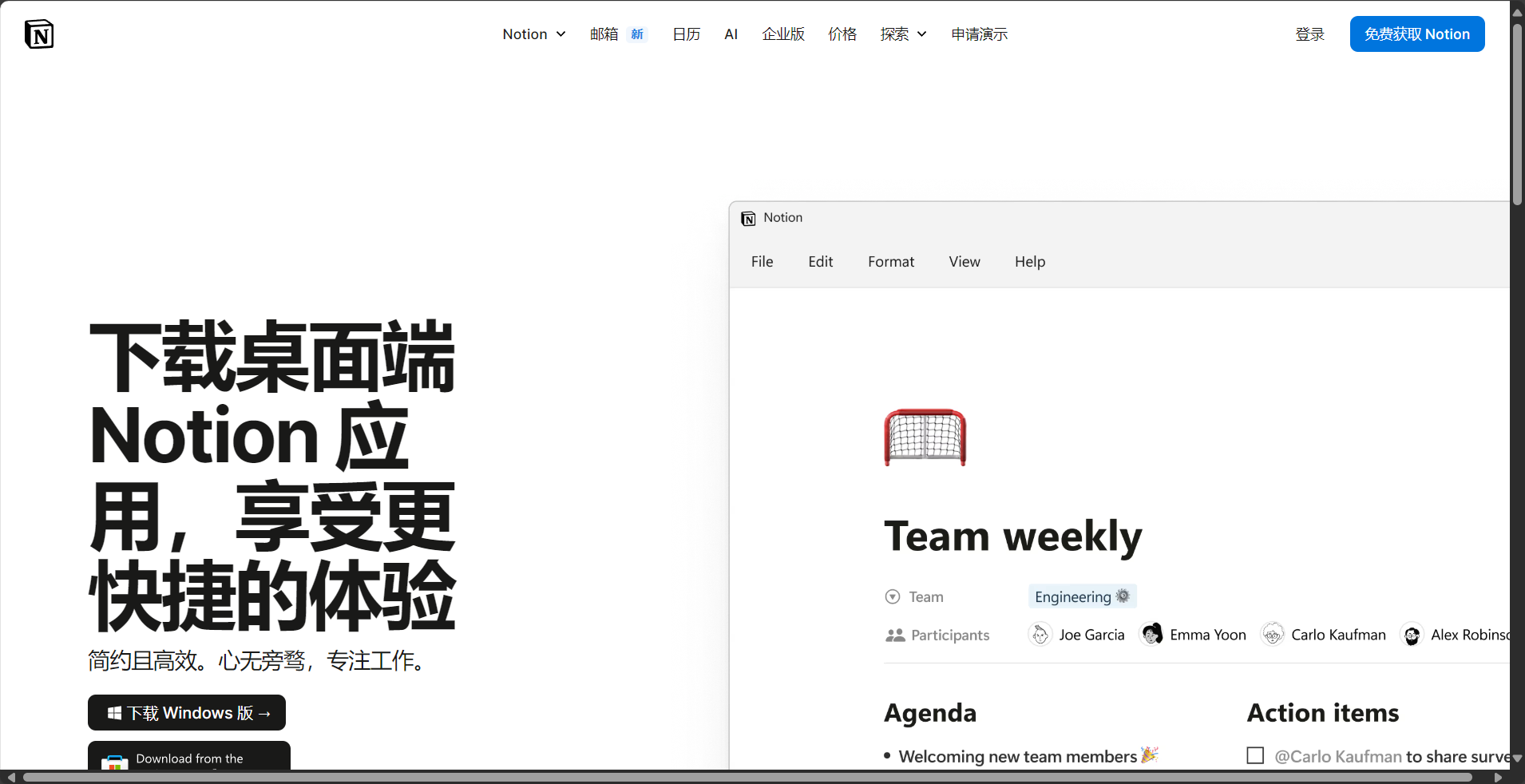
- Make good use of the heading system: Notion provides three heading sizes (Heading 1/2/3). Please develop the habit of using them correctly.
H1 (Main Title): Used as the overall title for the entire page; there is usually only one per page.H2 (Middle Title): Used to separate the main modules of a page, such as "Project A" and "Project B".H3 (Subheading): Used for subcategories within a module, such as "Project A - To Do" or "Project A - Documents".
- Toggle List (collapsed list): When a module has too much content, use a collapsible list to organize it. This keeps the page tidy by default, allowing readers to expand it as needed, and greatly reduces visual noise.
- Quote and Divider: The quotation module isn't just for displaying famous quotes; its vertical line on the left is a strong visual separator, perfect for highlighting key paragraphs. Dividing lines, on the other hand, gently separate different sections, creating a sense of breathing space.
Pillar Two: Layout – Say Goodbye to the Monotonous “Top-Down” Approach”
The default Notion page resembles a long scroll. Breaking this monotonous layout is key to enhancing the page's design.
- Columns are a core technique: This is Notion's most powerful layout tool. Simply drag and drop two or more text blocks to the left or right sides of the same line to create columns. You can create two, three, or even more columns.
- Common usage: Display the task list on the left and the calendar on the right; or display the three core metrics (KPIs) side by side.
- Clever uses of the Callout module: The Callout module comes with its own background color and icons, making it perfect for use as information cards. You can create three Callouts side-by-side, each showcasing three aspects of a project to create a visual focal point.
- Using database views: Don't treat databases just like tables. Try switching to...Gallery view或Board viewThe gallery view displays each entry as a card with a cover, making it ideal for showcasing reading notes or project portfolios.
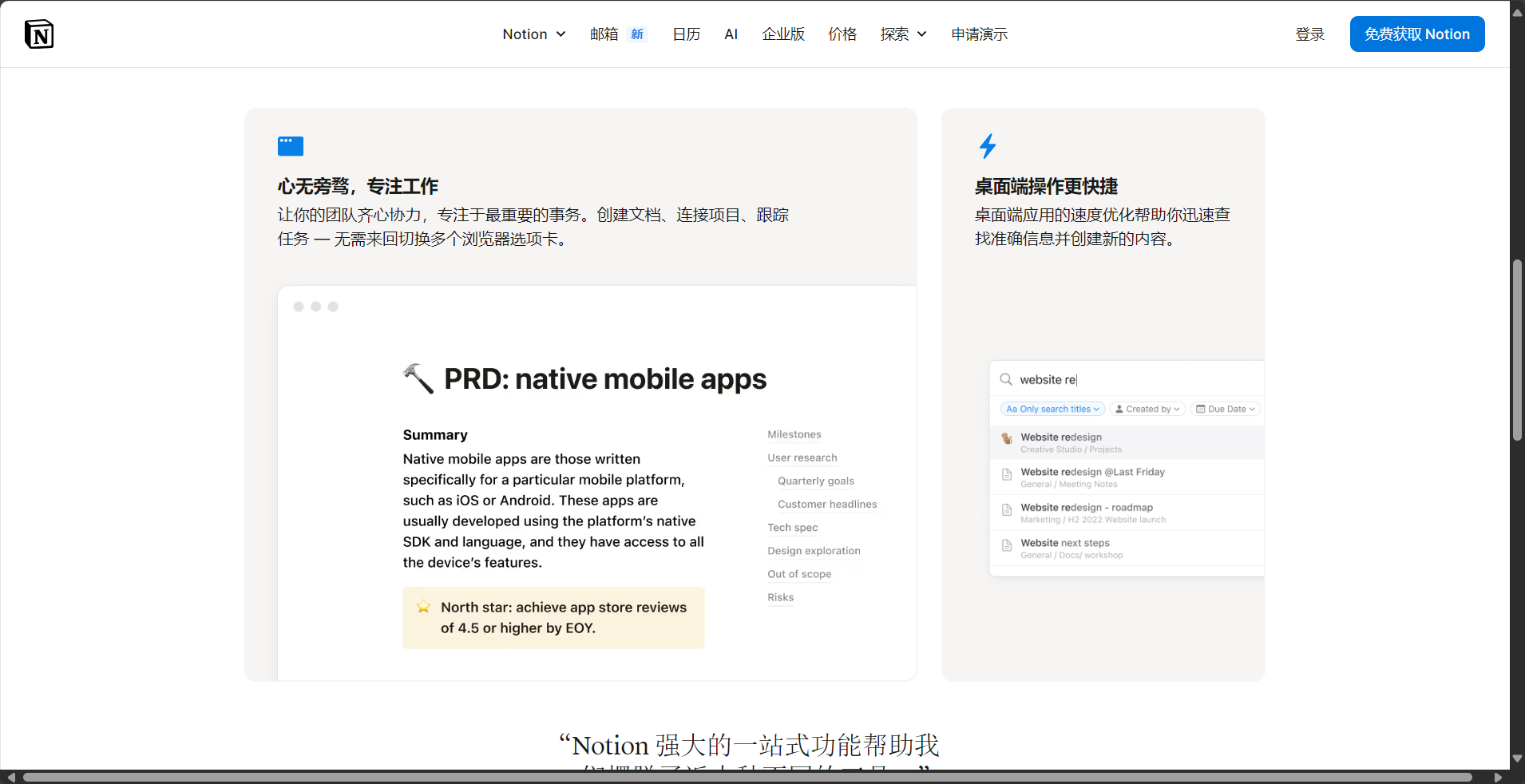
Pillar Three: Visual Elements – Restrained and Unified Embellishments
Visual elements are the "soft furnishings" of a page, playing a crucial role in enhancing its visual appeal. The key lies in "restraint" and "unity."
- Icons and Cover Images: Choose an icon relevant to the content of each important page. This is not only aesthetically pleasing but also allows you to quickly identify pages in the left sidebar. The header image defines the overall tone of the page.suggestion: Avoid using photos with overly cluttered colors as header images. Websites like Unsplash offer a wide selection of simple, high-quality images to choose from.
- Color system: Notion offers a variety of background and text colors.in principle: Choose a primary color scheme (such as blue), and then use only colors from that color family for highlighting or setting callout backgrounds. Avoid using more than three very different colors on a single page, as this will look cheap and cluttered.
- Looking for high-quality resource libraries:
- icon:
notion.vip/icons/或simple.inc/It provides a large number of Notion-specific icons with a consistent style. - Header image/animated GIF: Search for minimalist GIFs on Giphy, or find high-quality, royalty-free images on Unsplash/Pexels.
- icon:
in conclusion:
A beautiful Notion page isn't built on elaborate decorations. It stems from a clear logical structure, diverse layout variations, and consistent visual embellishments. When you start building your page based on these three pillars, you'll find that even using the default Source Han Sans font, your Notion pages can look professional and aesthetically pleasing.

Theory alone isn't enough; directly applying high-quality templates is the fastest way to enhance the visual appeal of Notion. Below are 11 carefully selected templates in different areas, which are not only aesthetically pleasing but also embody efficient information organization methods. You can search for these keywords on major template platforms or directly copy the links shared by the creators.
Personal Management
- “"Second Brain" Template: This is one of the most popular personal knowledge management systems currently available. It typically includes four main modules: Projects, Areas, Resources, and Archives, helping you build a clear and scalable personal knowledge base.
- Ultimate Dashboard: This dashboard template aggregates all your important information—daily to-dos, weekly goals, habit tracking, and quick access—onto a single page. A good dashboard template makes extensive use of columns and synced blocks.
- Bullet Journal System: This template perfectly replicates the classic bullet journal method (quick recording, monthly/weekly/daily views) in Notion. These templates are typically designed with simplicity in mind and emphasize practicality.

Learning and Creation
- Content Creation Hub: Designed specifically for bloggers, YouTubers, and broadcasters. It typically includes a database with a Kanban view for tracking the "idea-writing-publishing" process of topics and is linked to a content calendar.
- Book/Article Reading Library: Using the gallery view, each entry is a book or article, with a book poster on the cover. Clicking on it reveals the author, rating, summary, and your reading notes.
- Course Tracker: It's used to manage the multiple online courses you're taking. It can record progress, notes, assignments, and deadlines for each course.
Life and Finance
- Ultimate Travel Planner: One database handles all your travel needs. Each entry represents a trip, containing flight and hotel information, daily itinerary, budget list, packing list, and more.
- Personal Finance Dashboard: It links two databases, income and expenditure, automatically calculates the monthly surplus, and displays the expenditure categories using charts (embedded using tools such as Notion2Charts).
- Recipes and Meal Planners: A recipe database (gallery view, featuring food images as covers) is linked to a weekly meal plan calendar. What to eat today is clear at a glance.
Team collaboration

- Lightweight CRM system (Simple CRM): For small teams or freelancers, Notion can be used to build a simple customer relationship management system. It tracks the status, contact records, and related projects for each customer.
- Company Homepage/Wiki: A clear internal company information portal includes company introduction, team members, frequently used links, workflows, and rules and regulations. Excellent wiki templates make extensive use of columns and callouts to guide the reader.
How to obtain and use:
- channel: Notion's official template library, Gumroad, and domestic platforms like Bilibili, Zhihu, and Xiaohongshu are the best places to find these templates. Searching for these keywords will yield a large number of high-quality free and paid templates.
- use: Once you find the template page, click the "Duplicate" button in the upper right corner, and it will be completely copied to your workspace.
- suggestion: After copying, take some time to study the template's structure and understand how its database relationships and rollups are set up. This will give you a better grasp of Notion's essence than simply using it.
in conclusion:
These templates are not just "skins," but also the "skeleton" of information organization methods. Start by applying them, and gradually modify them according to your own habits. Eventually, you will create a Notion system that is both beautiful and powerful, completely your own.
© Copyright notes
The copyright of the article belongs to the author, please do not reprint without permission.
Related posts




No comments...