
How to edit/publish articles from the background of AI Meow Navigation to earn income?
Welcome to the creators of AI Meow Navigation !
Here, you can not only share your knowledge and insights, but also earn “Fengyue Coins” by publishing articles, and the value of AI Fengyue coins is equivalent to RMB, which can be obtained by promoting others to play AI Fengyue. Not only can Fengyue Coins be converted into a large number of points to play AI Fengyue, allowing you to earn points freely, but Fengyue Coins can also be replaced with real money, bringing you real income.
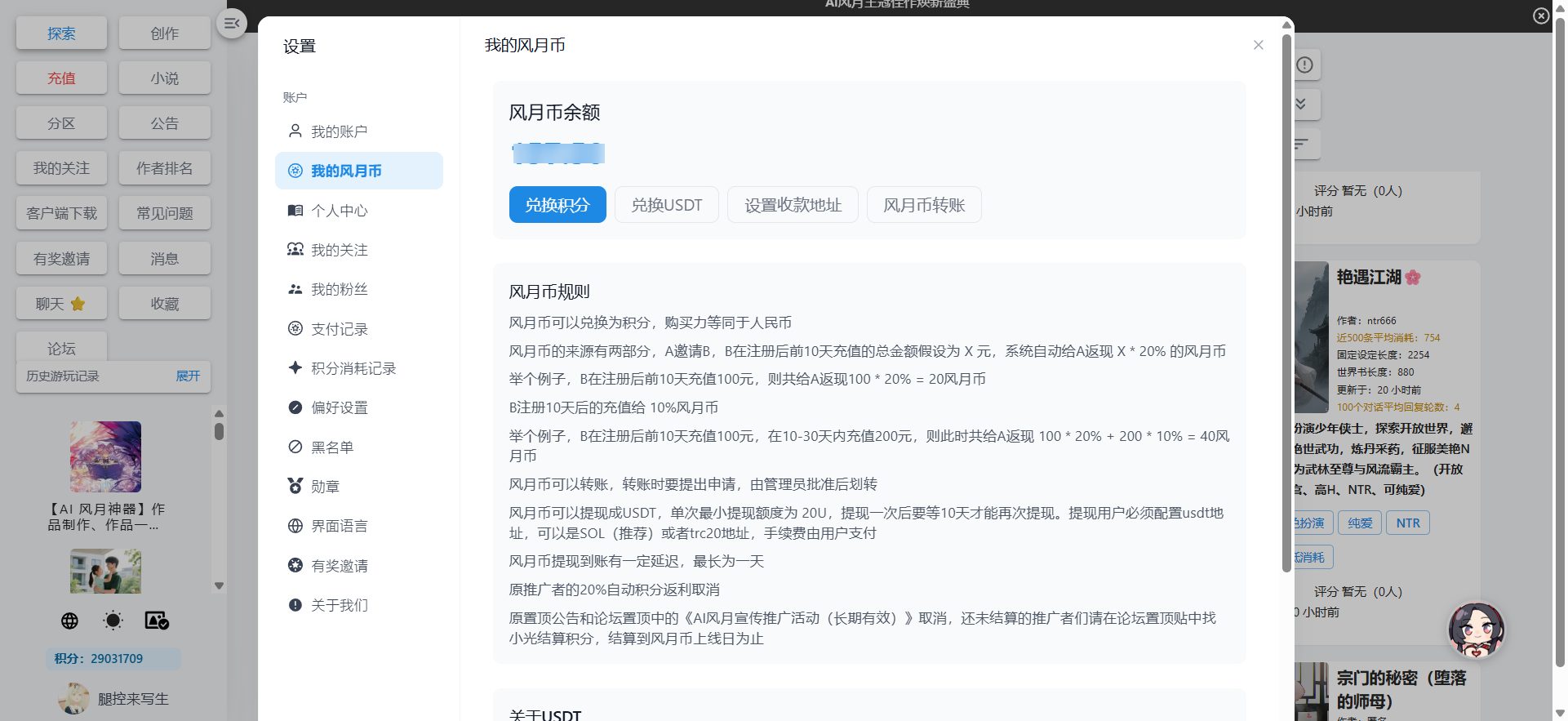
And this tutorial will take you step by step on how to easily edit and publish your first article from the background. The process is very simple, let’s get started!
STEP 1: Preparation: Register/log in to the AI Meow Navigationwebsite
Before you start creating, please make sure you are registered/logged in to your AI Meow Navigation account.
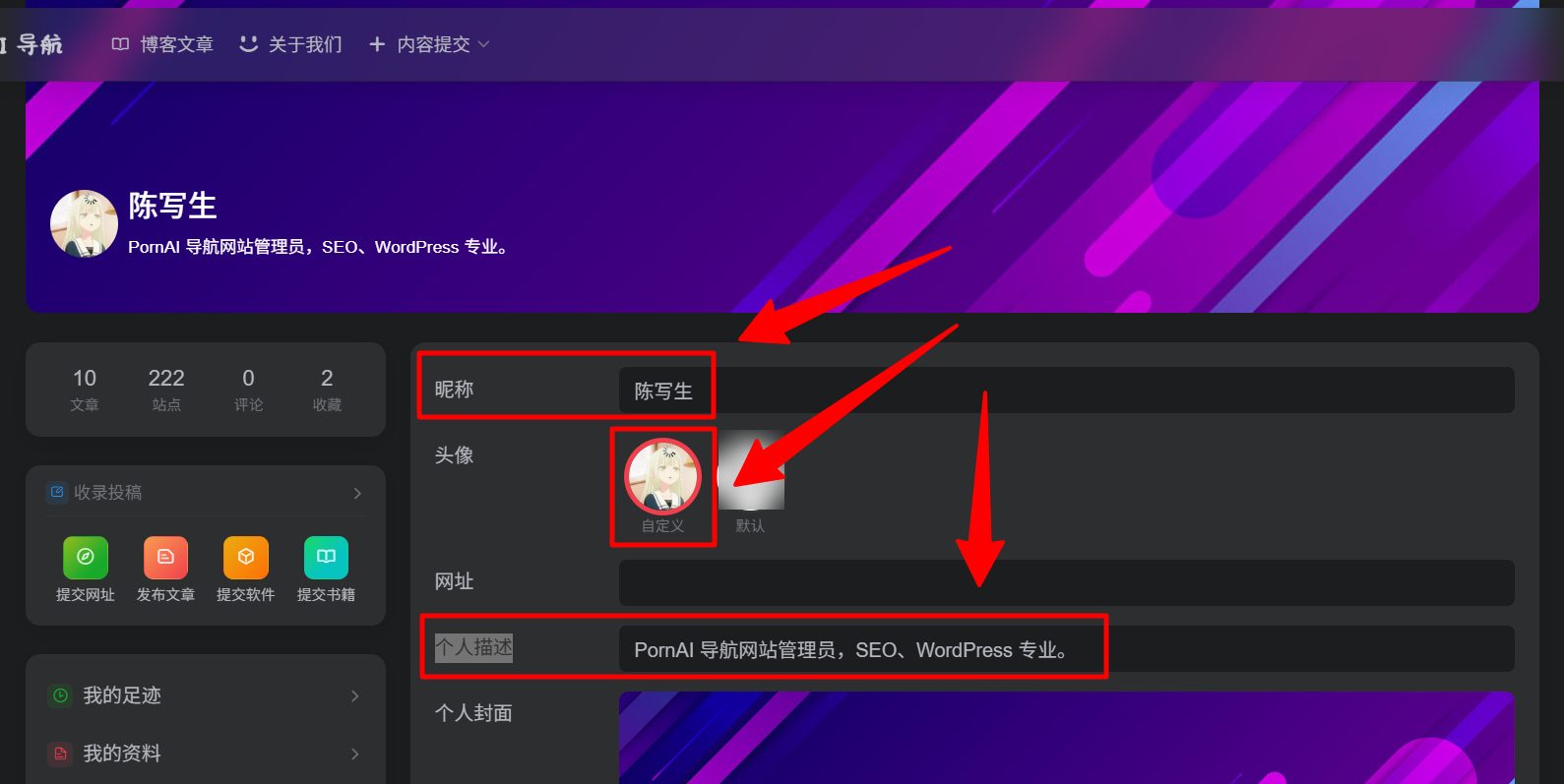
Once you’re logged in, we recommend that you first go to the User Center. Here, you can set your favorite nickname, change your avatar, and fill in a personal description to let everyone know you better. A unique author image is the first step to attracting readers!
Registered account:https://aicats.wiki/login/?action=register
STEP 2: Start creating: Create or edit a new article
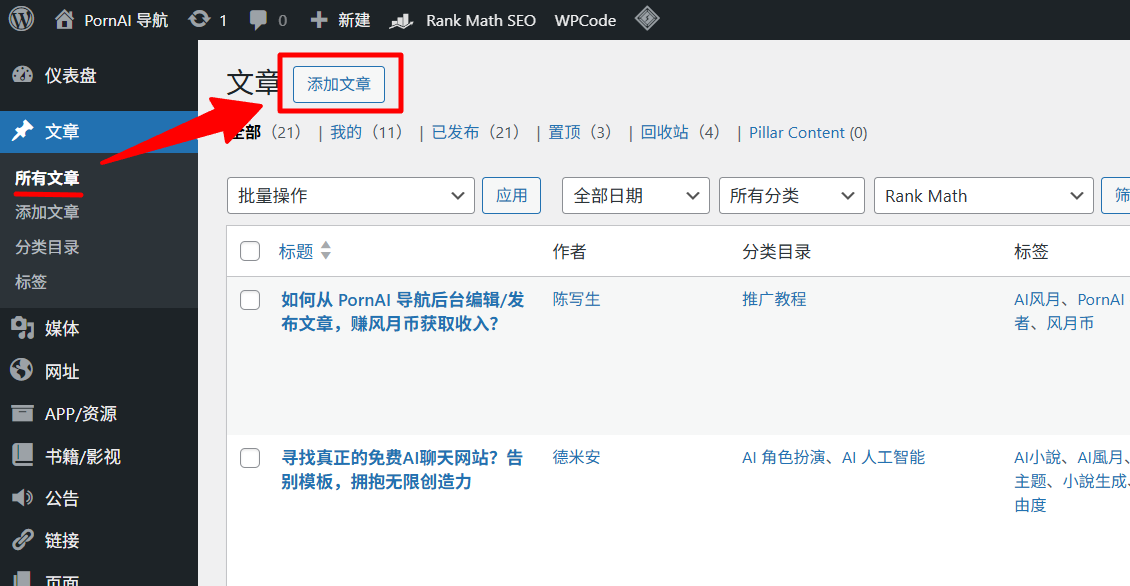
After successfully logging in, click the following link to enter the website backend. Then select a draft article that interests you the most and click “Edit“.
Website backend: https://aicats.wiki/wp-admin/edit.php
Alternatively, if you don’t want to edit the draft article we generated and want to create a new article for publication, you can click “New Post” to create a new article:
STEP 3: Enrich content: Write articles and paragraph layout
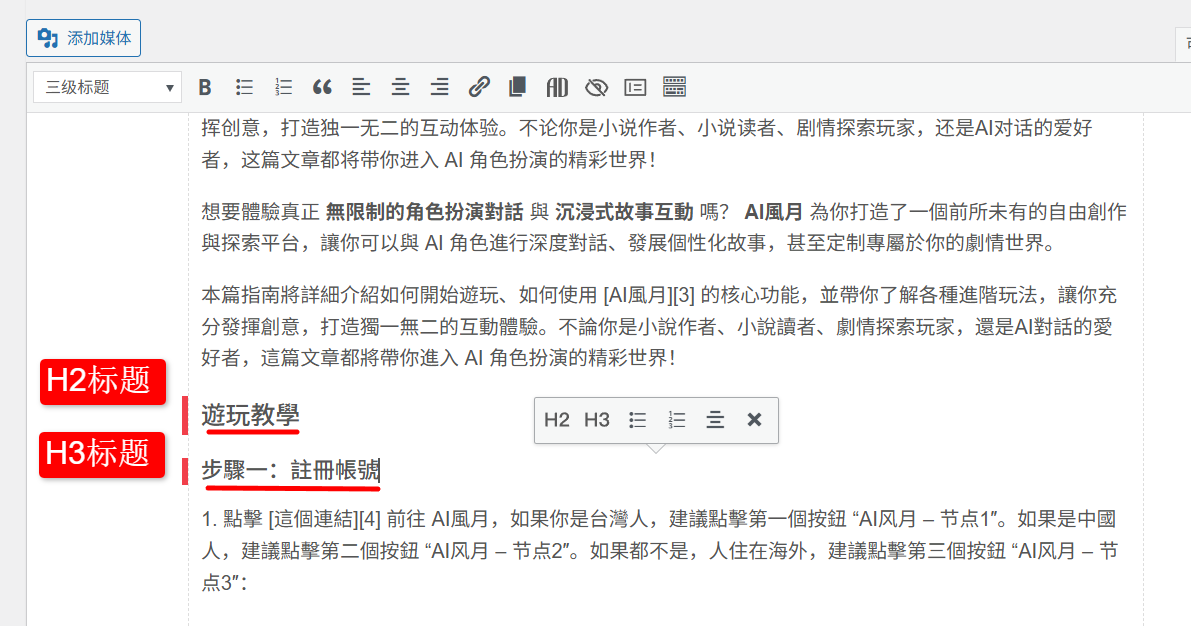
In the article editing area, you can indulge in your literary talents. To make your article structure clearer and easier for readers to read, we strongly recommend using heading hierarchies to organize your content.
- H2 Heading (Heading 2): Used for the main outline within the article.
- H3 Heading (Heading 3): Used for the subsection under the H2 outline.
A well-structured article can greatly enhance the reader’s reading experience.
STEP 4: Illustrated and textual: Insert and set the image correctly
A picture is worth a thousand words. Adding relevant images to your article can make it more vibrant. You can find suitable images on free stock stock sites like Pixabay or Pexels .
After inserting the image, be sure to make the following settings, which are crucial for the professionalism and readability of the article:
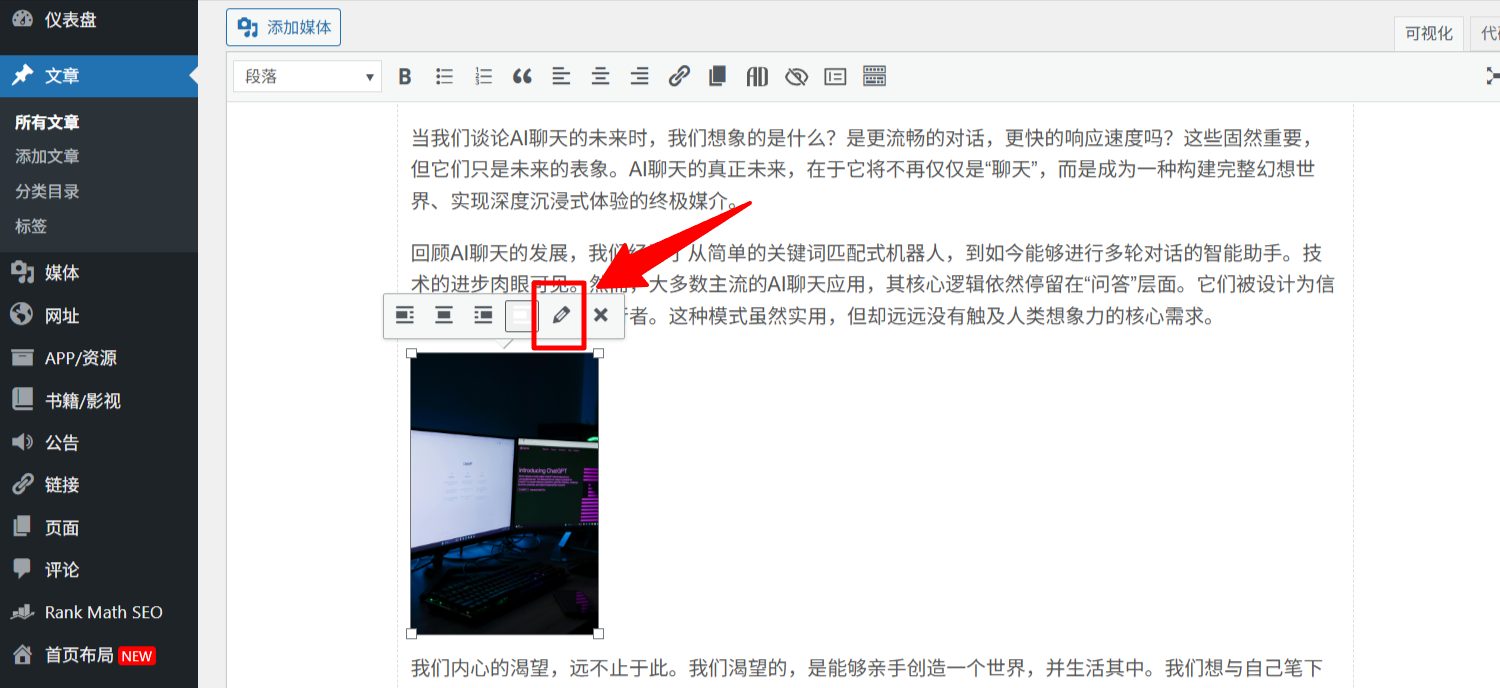
- Tap the picture you inserted, then tap “Edit” (usually a pencil icon).
- In the pop-up window, fill in the following three fields:
- Alt Text:
图片标题|文章标题 - Caption:
图/图片标题 - Image Title:
图片标题|文章标题
- Alt Text:
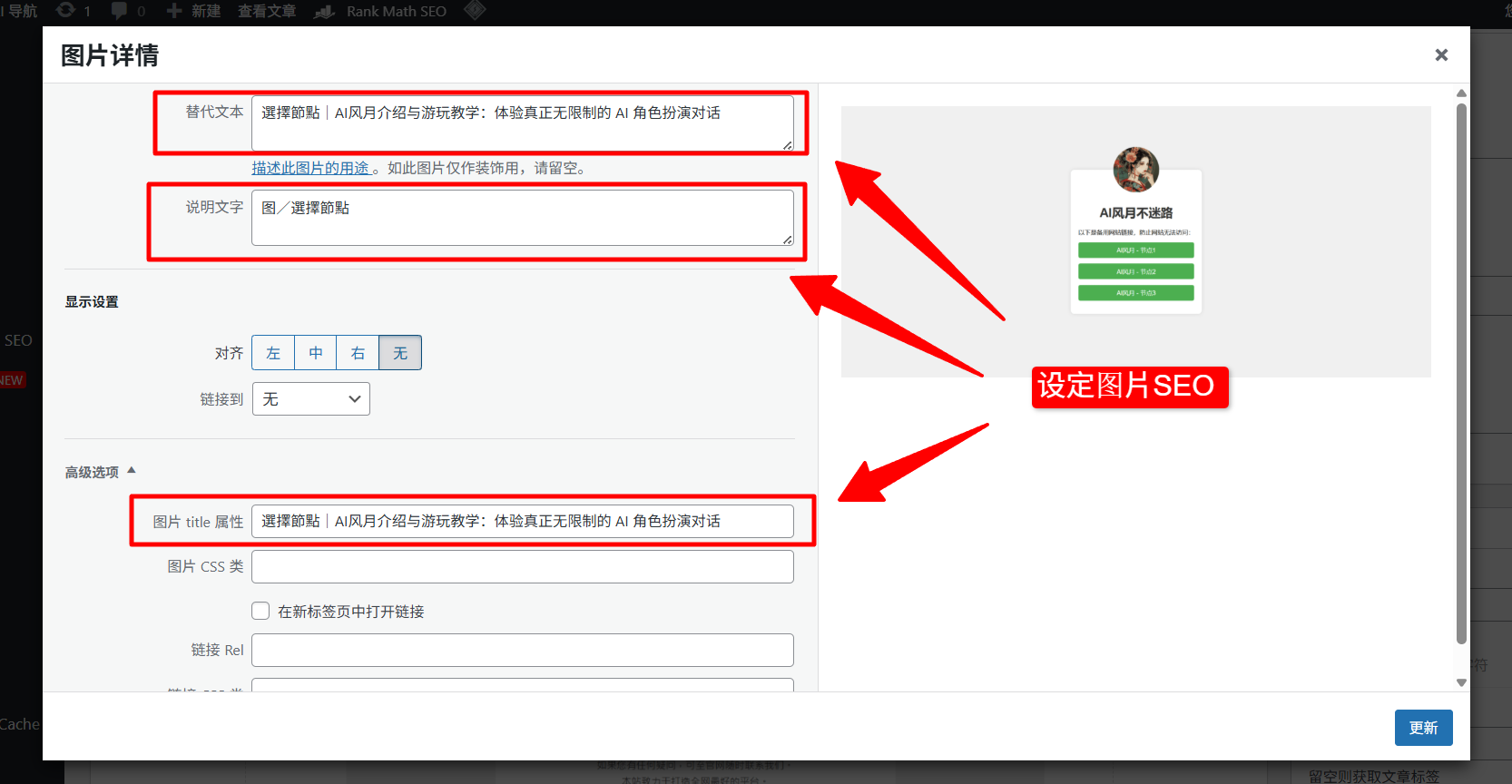
Example: If your article is titled “Best AI Chat Sites for 2025,” the image content is a laptop running an AI program. The image field can be entered:
- Alt text:
运行AI的笔记本电脑|2025年最佳AI聊天网站推荐 - Caption:
图/运行AI的笔记本电脑 - Image title attributes:
运行AI的笔记本电脑|2025年最佳AI聊天网站推荐
STEP 5: Add Value: Add promotional or referral links
If you want to recommend a tool or cite a source in your article, you can add a hyperlink. The method is simple:
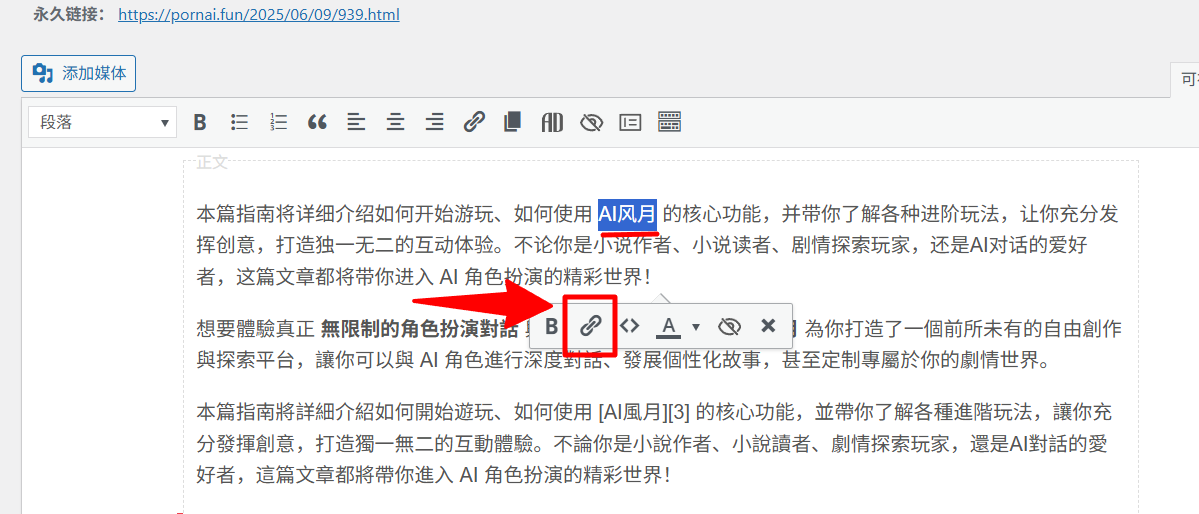
- Use your mouse to select the text you want to add a link to (e.g. “Click here to access”).
- Click the “Insert/Edit Link” icon in the editing toolbar (usually like a chain).
- In the input box that pops up, paste the URL you want to point to, and press Enter.
By sharing valuable links, your articles will be more helpful and your readers will trust you more.
STEP 6: Category: Set categories and tags
To ensure that your article is properly archived and recommended to interested readers, be sure to set up categories and tags.
- Category: Choose a main category that best encapsulates the topic of your article.
- Tags: Add several related keywords as tags based on the content of the article.
STEP 7: Set the cover: Add a featured image
The featured image is the “cover” of your article, which appears on the homepage of your website and in the list of articles. In the bottom right corner of the edit page, find the option to “Set featured images” and upload an image that best represents the content of your article as the cover.
STEP 8: Submit for Review: Save the draft and wait for publication
After completing all of the above steps, double-check your article content, layout, and image settings. Once you’re confirmed, click “Save as Draft”.
Once the article is saved as a draft, our editorial team is notified and reviewed. After passing the review, your article will be officially published on AI Meow Navigation, and you will also start earning “Fengyue Coins” as a result!
© 版权声明
文章版权归作者所有,未经允许请勿转载。
相关文章

暂无评论...
